
Choose classes, make room for your weekly commitments, and get ready for registration.
By Hrishit Asar, Noah Dillard, and Ritwic Verma
On this page: Why plan first · Before you start · Build your schedule · Register on time · Useful links
Why plan first
An open section looks promising until you realize it ends ten minutes before your next class across campus. Or it fits every other course and overlaps with your work shift. During your first registration cycle at Georgia Tech, even figuring out where to check these things takes a while.
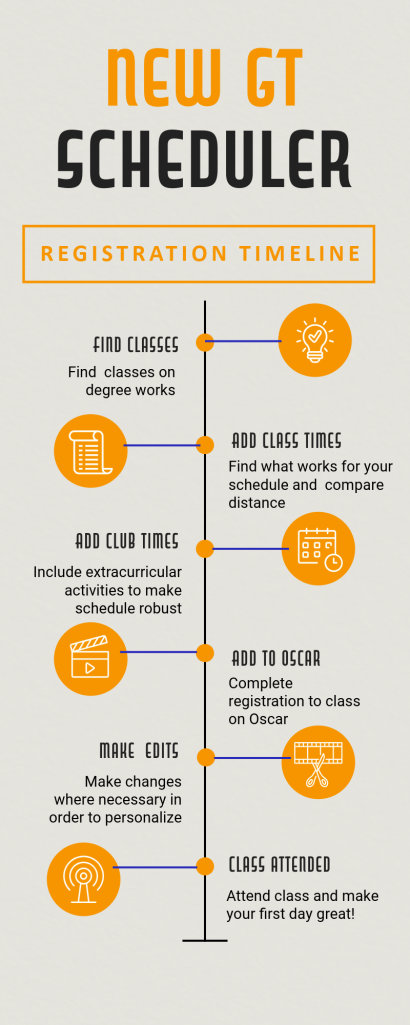
GT Scheduler puts your class options on a weekly calendar so you can see how they fit together. You can compare sections, check the walk between classrooms, and add recurring events such as a club meeting or a work shift. Those commitments belong in the plan from the beginning. Otherwise, a week that looks manageable on screen turns into one you spend the semester fixing.
This guide walks first-year and transfer students through that process. You’ll start with a course list, build a few possible schedules, and finish with the section numbers you need when registration opens.
Before you start
Pull up your degree requirements and jot down your usual weekly commitments. Keep OSCAR open too. GT Scheduler helps you plan; OSCAR handles enrollment and decides whether you can take a section.
Two terms come up often:
- CRN (Course Reference Number): the five-digit number for one section of a course in one term.
- Time ticket: the window when Georgia Tech lets you register.
By the end, you’ll have a preferred schedule and a backup ready for your time ticket.
Build your schedule
Work through these steps before your registration window. The work shift below is a sample; use your own commitments.
1. Check your course list and time ticket
List the courses you need for the coming term. Use your degree requirements and advising notes to confirm prerequisites before you compare times. In OSCAR, open Prepare for Registration for that term and check your time ticket and any holds. The Registrar’s time ticket page explains when tickets post. Write down when you can register so you have time to clear a hold or sort out a missing prerequisite.
2. Open GT Scheduler and choose your term
Go to gt-scheduler.org and open the semester menu near the top left. Choose the term you plan to register for before adding courses. If the term isn’t listed yet, check back later; an old term’s schedule won’t show next term’s sections.
3. Add the courses you need
Under Courses, type a subject and number, such as CS 1331, into the search box. Click the plus beside the matching result, then repeat for your other courses. Check the full course title each time. Expand a course card to see its sections. If a course needs a separate lab or recitation, add that component and check OSCAR’s linked-section information for a valid pairing.
4. Add your recurring commitments
Open Recurring Events beside Courses. Enter a name, select the days, and set the start and end times. For example, add “Gym time” on Monday and Thursday from 2:00 to 3:00 p.m. (the day label R means Thursday). Add a location if you have one, then click Add. Repeat for each fixed commitment, then check that every event lands on the right days and times.
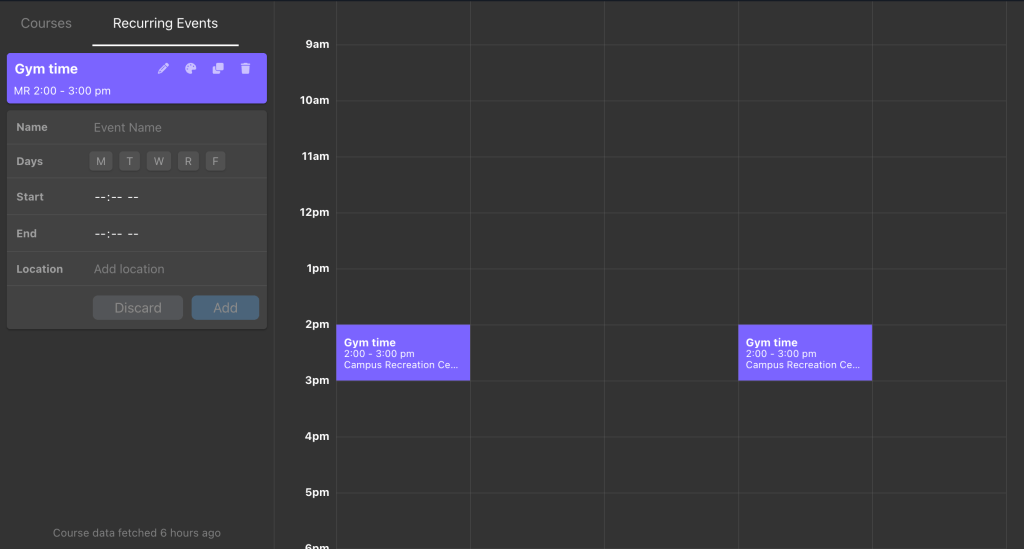
Caption: Choose Monday and Thursday, check both times, and click Add to put the work shift on your calendar.
5. Compare schedule combinations
Choose a preview under Schedule Combinations on the right to load it into the main calendar. Look through the alternatives and see where each one places your classes around your events. Read the meeting times, not just the colored blocks. If nothing fits, swap sections or replace a course with another option from your advising plan.
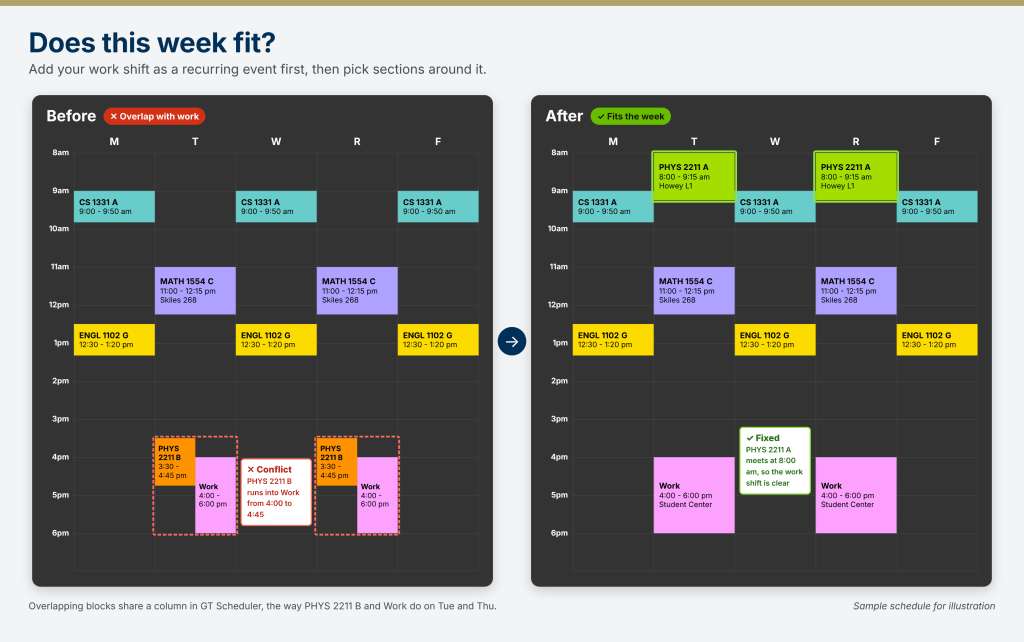
Caption: Adding your work shift before choosing sections makes the overlap easier to catch. Alt text: Two sample weekly calendars. The first shows a Tuesday and Thursday class overlapping a 4 to 6 p.m. work shift. The second moves that class to a morning section and leaves the work shift clear.
6. Check the trip between classes
Open Map to see class locations and the estimated travel time between them. Compare that estimate with the gap in your schedule, and allow for the route you actually take, especially if you need an accessible entrance or an elevator. If a connection looks too tight, go back to Scheduler and try another section. Look up unfamiliar buildings on the Georgia Tech campus map.
7. Build a backup schedule
Open the schedule menu near the top, which starts as Primary, and choose New Schedule. Build another workable version with different sections or an alternate course, and add your recurring commitments to it too. Use Compare Schedules to review both. A good backup still fits your requirements and your week if your first-choice section fills.
8. Copy your preferred schedule’s CRNs
Select the schedule you want, open Export, and choose Copy CRNs to clipboard. Two sections of the same course have different CRNs, so paste the numbers into a note alongside each course and section name. Keep a separate list for your backup, and include any required lab or recitation.
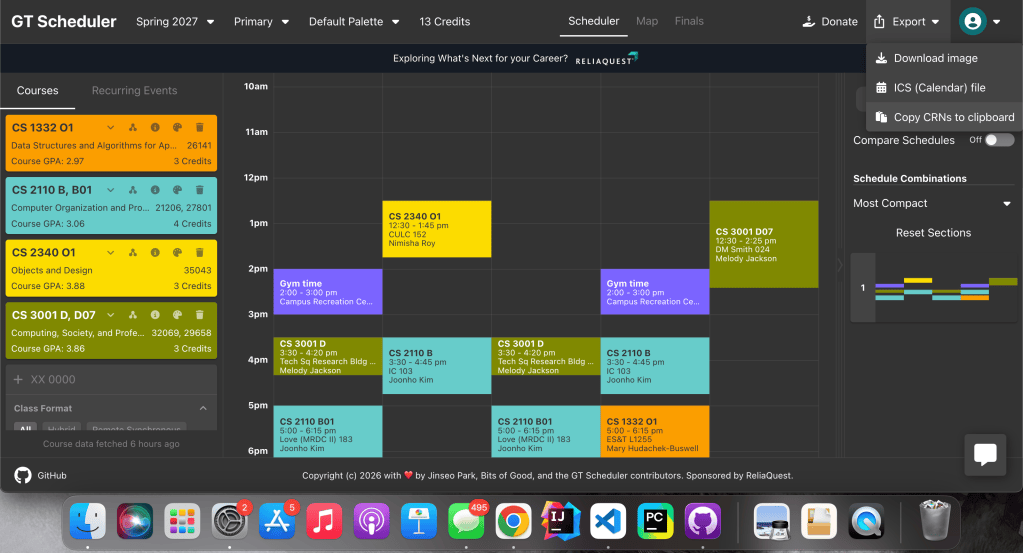
Caption: Select your preferred schedule before copying its CRNs. Keep the backup’s numbers in a separate note. Description: A cursor selects a schedule, opens Export, chooses Copy CRNs to clipboard, and pastes the numbers into a note. Closed captions and the transcript below repeat the button names and explain each action.
Register on time
9. Recheck your sections in OSCAR
Before your time ticket opens, check each section in OSCAR for open seats and registration restrictions. An open seat doesn’t mean your major or class standing makes you eligible. Confirm linked lecture and lab pairings. If a section has closed or is restricted, update your plan and its CRNs. Seat counts change, so check again close to your window.
Caption: Check your sections in OSCAR before you use their CRNs to register. Alt text: Flowchart from a preferred schedule to OSCAR section checks. A closed or restricted section sends the reader to a backup schedule. An available, eligible section leads to CRN entry, submission, and a check for Registered status.
10. Register and confirm your enrollment
When your time ticket opens, go to Register for Classes in OSCAR and choose the same term. Use Enter CRNs to add your sections. Review the pending courses, choose Register (Web) where it applies, and click Submit. Check that each course’s status changes to Registered. If OSCAR shows an error, look it up on the Registrar’s error messages page before trying again. After any change, compare your registered schedule with your plan.
You’re ready
Planning in GT Scheduler first means your time ticket becomes a few minutes of entering numbers instead of a scramble. You’ve checked your week, your walks between buildings, and your eligibility, and you have a backup if a section fills. Keep your CRN notes until the add/drop period ends in case you need to make a change.
Useful links
- GT Scheduler — build and compare weekly schedules.
- OSCAR — check holds and time tickets, and register.
- Registrar: time tickets — when and how registration windows are assigned.
- Registrar: registration assistance — step-by-step guides, including courses with labs and waitlists.
- Registrar: error messages — what each add/drop error means.
- Georgia Tech course catalog — course descriptions and prerequisites.
- Georgia Tech campus map — buildings and routes.


Leave a Reply