
By Karen Lu, Tanmay Haldiya, and Ronit Jain
Printing an assignment or resume should be straightforward, but Georgia Tech’s campus printing system can be confusing the first time you use it. You might have your document ready but still wonder where to upload it, which printer to visit, or why your pages have not appeared.
This guide walks you through campus printing, from preparing your file to collecting your finished pages. It is designed for first-year students, transfer students, and anyone unfamiliar with Georgia Tech’s printing resources. You do not need previous experience with the system.
Follow the steps below to upload a document through My Print Center, check your printing funds, review your settings, find a compatible printer, and release your job.
Jump to: Before you print | Upload your document | Collect your pages | Fix common problems

The Print Studio for larger prints (left) and printers for smaller documents (right), both located on the third floor of Price Gilbert.
Before You Print
Have these items ready:
- Your Georgia Tech login credentials.
- Your BuzzCard.
- A device with a web browser.
- The document you want to print.
This guide covers routine documents submitted through browser upload. For specialty or large-format printing, check the official resources linked at the end of this guide.
Upload Your Document
Complete Steps 1 through 4 on your device.
Step 1: Prepare Your File
Open your document and check its page order, orientation, and margins. Save a PDF copy to preserve the layout, then reopen the PDF to confirm that every page looks right.
Step 2: Open My Print Center
Visit My Print Center and sign in with your Georgia Tech account. Complete any authentication prompts.
Use Georgia Tech’s campus network. If you are connecting remotely or cannot reach the website, follow the network and VPN guidance on the School of Industrial Design’s Printing Resources page.
Step 3: Check Your Printing Funds
Review the balance shown in your account. Once an estimated job cost is available, compare it with your remaining funds.
Check current allocation and payment policies through OIT’s GT Printing Services page. Funding rules may differ across printing services.
Step 4: Upload and Review Your Document
1. Locate the Upload button near the upper-left corner of the My Print Center interface.
2. Click Upload and choose the document from your computer.
3. Wait for the document to appear in the Job List.
4. Confirm that the filename matches the document you intended to print.
5. Select the uploaded job to view its printing options.
6. Review the page count before proceeding.
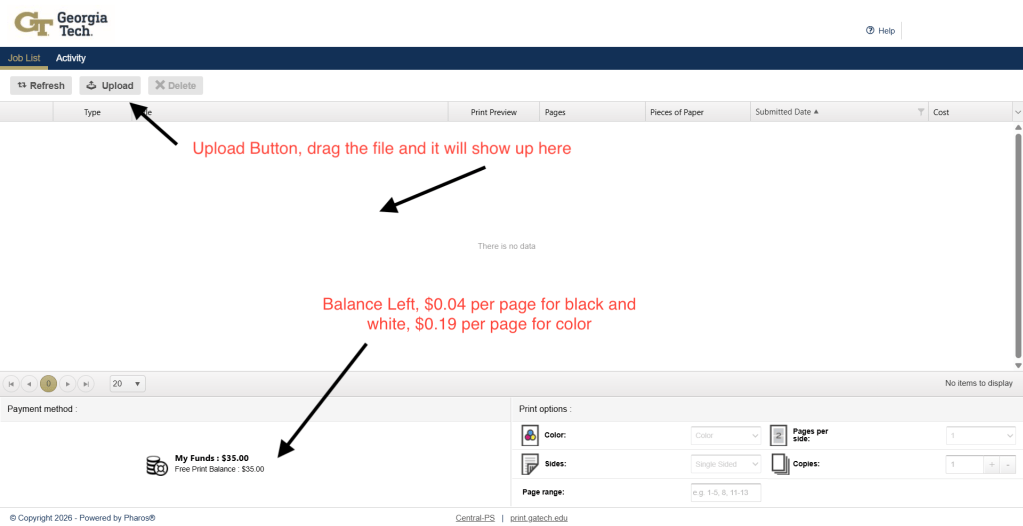
Screenshot guide: Locate the upload control to add your document, the job list to confirm that it uploaded, and the account balance to check your available funds.
Collect Your Printed Pages
Uploading places your document in a queue. You still need to release the job to print it. Complete Steps 5 through 8 before leaving the printer.
Step 5: Choose and Check Your Settings
Select your uploaded document and review the available settings. Match your choices to the assignment requirements and check the estimated charge.
- Requirements: Check any printing instructions from your instructor.
- Color: Choose black and white or color as needed.
- Sidedness: Choose single-sided or double-sided printing.
- Page range: Confirm which pages you want to print.
- Copies: Check the number of copies.
- Cost: Review the estimated charge before releasing the job.
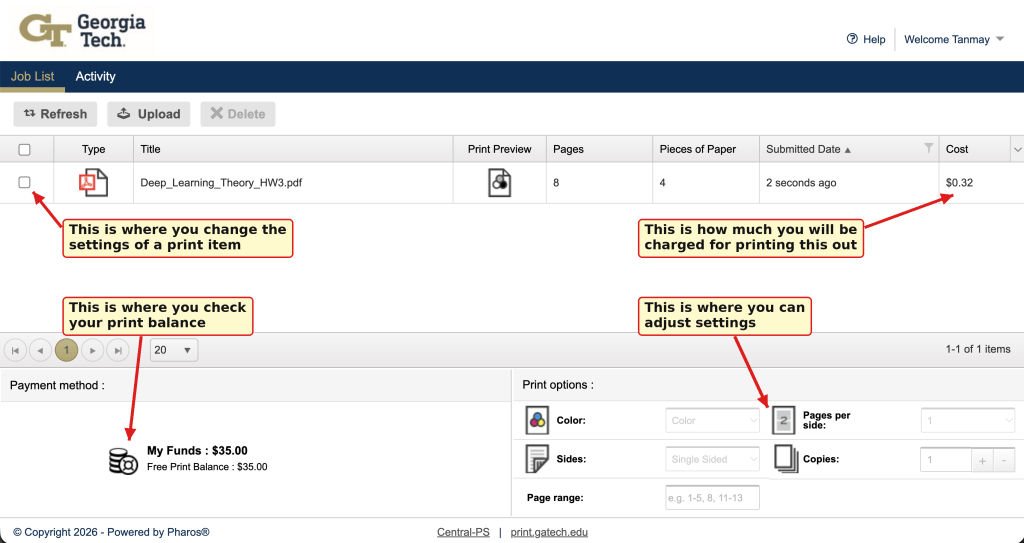
Caption: Georgia Tech’s My Print Center interface showing how to select a print job, review printing costs, check available funds, and adjust printing settings before printing.
Step 6: Find a Compatible Printer
Use OIT’s printer location information to choose a station that supports your settings. Check building access and hours before walking there.
Bring your BuzzCard and verify the station’s name when you arrive.
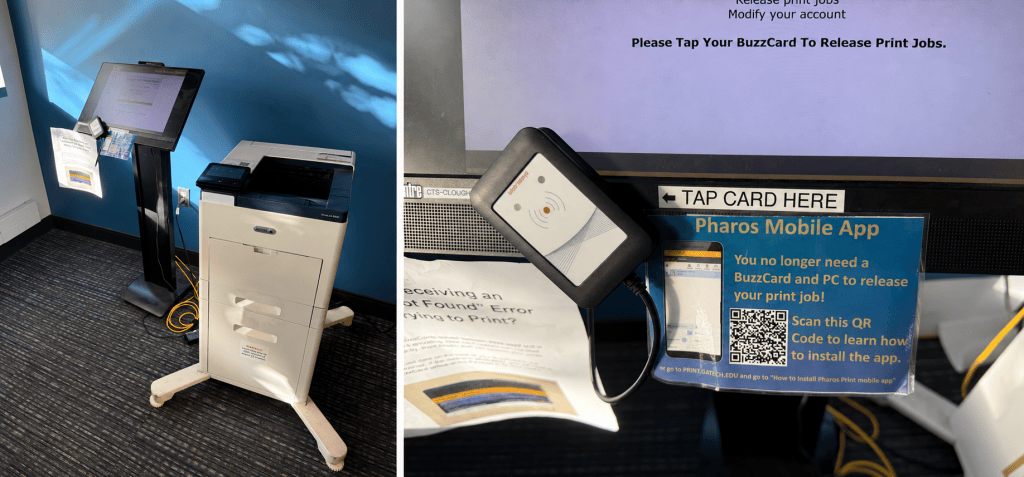
Caption: The CULC third-floor printer and release station (left), with a close-up of the BuzzCard reader used to release print jobs (right).
Step 7: Release the Correct Job
Follow the station’s posted BuzzCard sign-in instructions. Find your document in the queue and review its filename and job details.
Use the displayed print or release control to start printing. Check your selection carefully to avoid releasing duplicate copies.
Step 8: Collect and Inspect Your Pages
Wait for the job to finish, then collect every page. Check the page order, print clarity, and number of copies. Sign out of the station when you are finished.
If your output is incomplete or missing, review the troubleshooting section before submitting or releasing the job again.
Fix Common Printing Problems
Start with the problem that matches what you see.
When the Website Will Not Open
Check your internet connection and confirm that you are using the appropriate Georgia Tech network or VPN connection. Follow the official printing access guidance.
If access still fails, use OIT’s printing support resources.
When Your File Is Missing
Confirm that you signed in with the correct Georgia Tech account and that the upload completed. Check the filename and current job list before uploading the document again.
When the Printer Produces No Pages
Check the station display for an error message or unavailable status. Note the printer’s name and the problem, then ask staff or OIT for help before releasing the job again.
Conclusion: You’re Ready to Print!
Printing at Georgia Tech might seem confusing at first, but the process becomes much easier once you know where to upload your documents and how to release them. Before leaving the printer, remember to check that you have collected all your pages and signed out of the station.
If you run into problems, revisit the troubleshooting section or use Georgia Tech’s official printing resources for help. With these steps, you’ll be ready to print your next assignment without unnecessary stress.
Find Official Printing Help
Use these resources for current access requirements, printing policies, locations, and assistance:
- My Print Center — Upload documents and review your account.
- OIT GT Printing Services — Find campus printing information, locations, and support resources.
- Georgia Tech Library Computers & Printing — Find information about library printing and BuzzCard use.
- School of Industrial Design Printing Resources — Review browser upload and network guidance.


Leave a Reply