

Stop paying for software your tuition already covers. Here is how to claim it.
By Jenny Zhang and Sean Jhon Alleyne
On this page
- What GT gives you for free
- Step 1: Set up your GT login
- Step 2: Open GT’s software hub
- Step 3: Install Microsoft Office
- Step 4: Claim the GitHub Student Pack
- Step 5: Install JetBrains IDEs
- Step 6: Download MATLAB
- Step 7: Connect the campus VPN
- Step 8: Explore OnTheHub
- Step 9: Add Google for Education
- Which tool do I need?
- Further reading
Every semester, Georgia Tech students pay for software the Institute already gives them for free. Microsoft Office, MATLAB, JetBrains IDEs, the GitHub Student Developer Pack, Google’s Gemini and NotebookLM, cloud storage, and the campus VPN all come with an active GT login. Yet most first- and second-year students never claim them. Together, these tools are worth hundreds of dollars a year.
The problem is not availability. It is discoverability. GT’s Office of Information Technology (OIT) runs a software hub, but it works like a directory of portals. It assumes you already know what you need and where to click. The biggest perks, such as the GitHub Student Pack and JetBrains licenses, come from outside partners. They never appear on that page at all. The activation steps are scattered across OIT pages, the library site, and old forum threads. As a result, the savings stay hidden.
This guide pulls everything into one place. It shows you what GT offers, where to activate each tool, and how to set it up with your GT login. You start with your credentials and finish with a working toolkit. Office handles your papers. The GitHub Pack powers your projects. MATLAB and JetBrains cover your coursework. The VPN keeps your access secure anywhere.
For new students on a tight budget, that is a real and measurable win. Follow the steps below, and you will spend the next four years using what you have already paid for.
What GT Gives You for Free
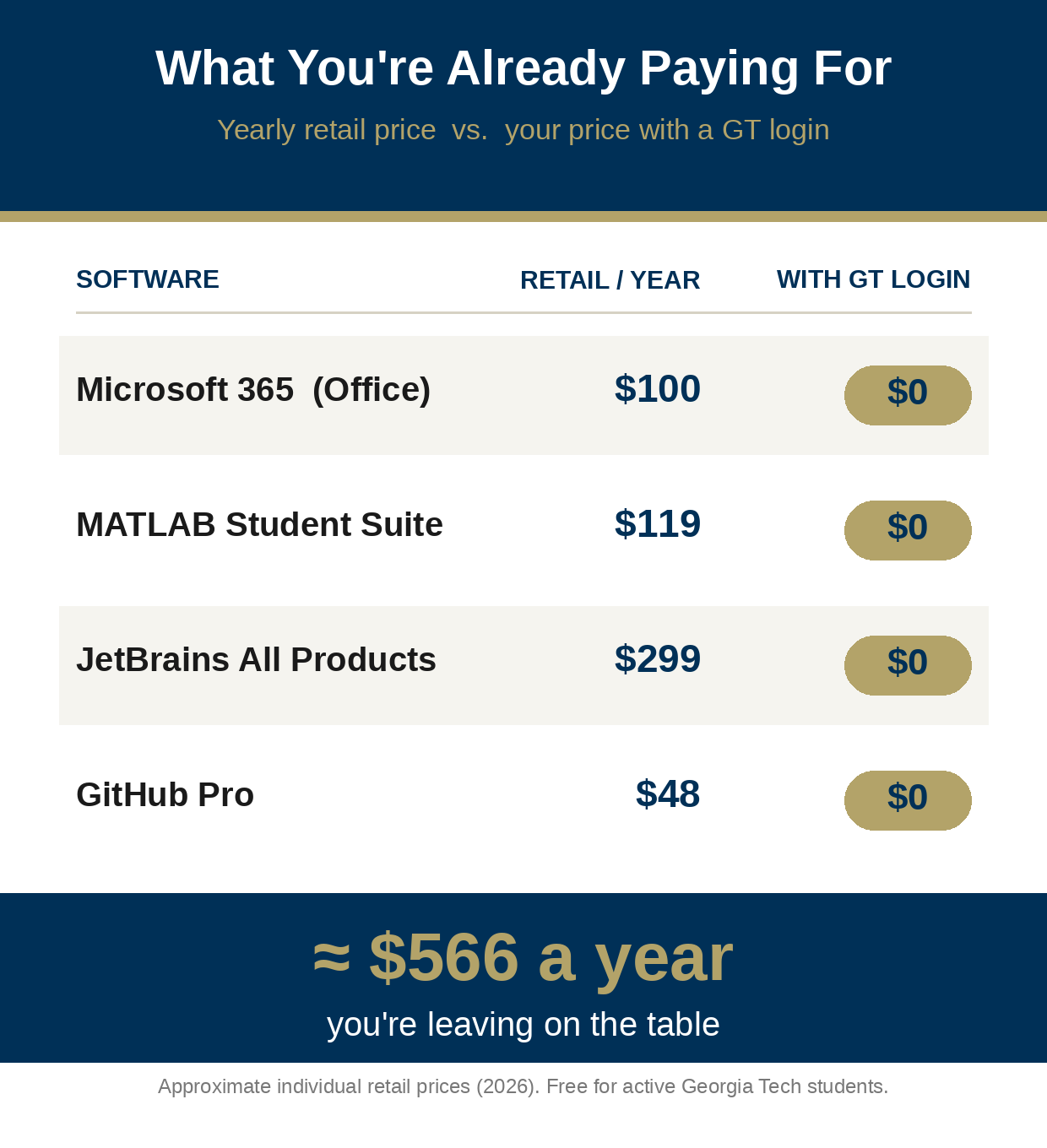
Before you start, here is what is on the table. The chart below compares the yearly retail price of four popular tools with your price as a GT student. The total comes to about $566 a year.
Claim Your Free Software, Step by Step
Work through these steps in order. Each one is quick, and you only need your GT login to finish.
Step 1: Set up your GT login and Duo
Before anything else, lock in your GT account. Go to passport.gatech.edu and set your password. Then enroll a device in Duo two-factor authentication. Every portal in this guide checks these credentials. Setting them up once now saves you from sign-in errors later. When you can log in and approve a Duo prompt, you are ready.
Step 2: Open GT’s software hub
Next, see what the Institute offers. Visit software.oit.gatech.edu and sign in with your GT account. This page lists the software GT licenses for students. Browse it and note the titles you want. Treat it as a map, not a manual. It shows you what exists, but the activation steps live on each tool’s own site. For the official details on campus-wide and departmental licenses, see GT OIT’s Software and Resources page.
Step 3: Install Microsoft Office for your papers
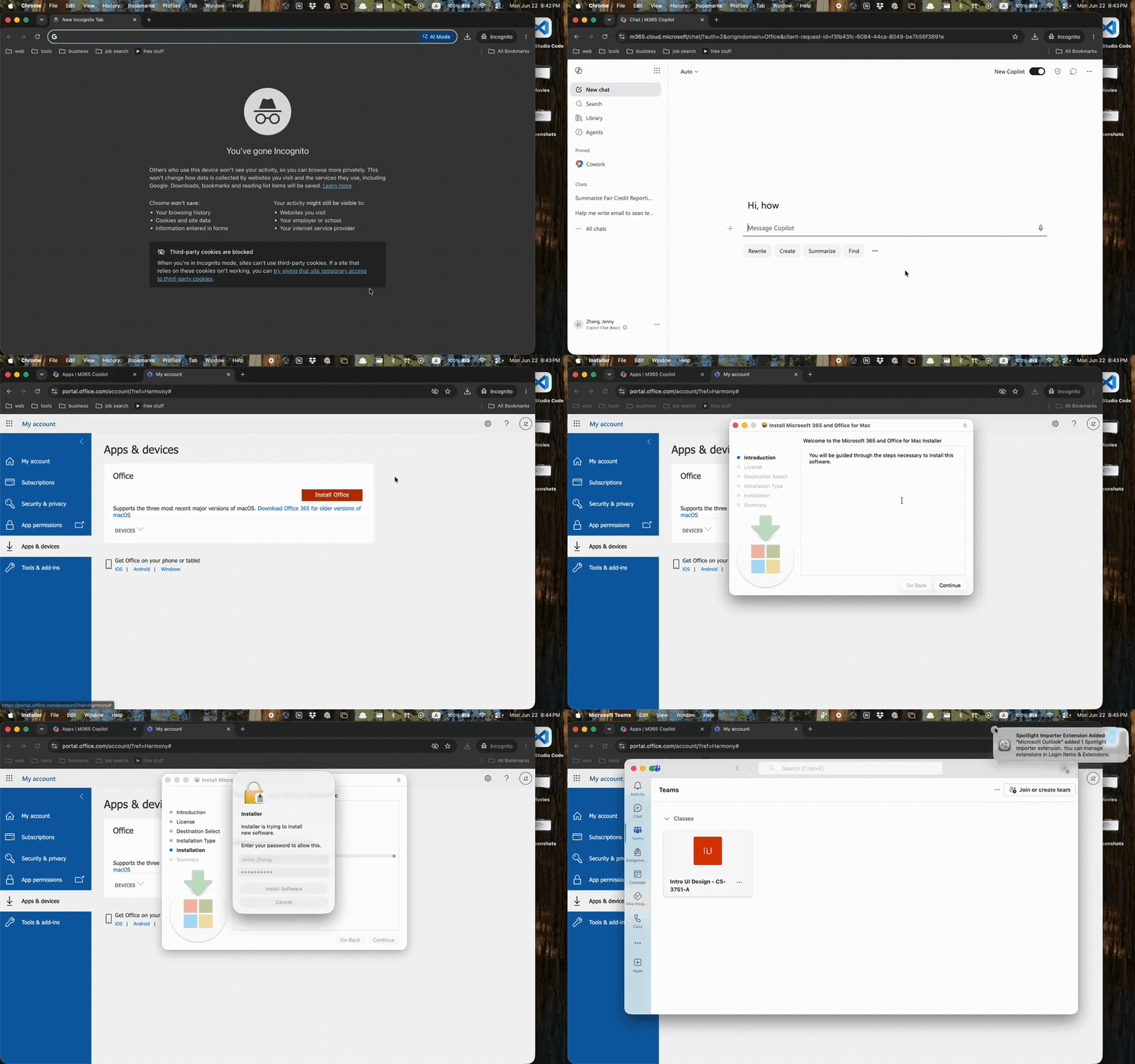
Need Word, Excel, and PowerPoint? You already have them. Go to office.com and sign in with your GT email. Open Apps and devices, then choose Install Office. Run the installer that downloads, and approve it with your computer password if prompted. The apps install in a few minutes, with no product key required. The screen recording below walks through the full process on a Mac, from signing in to a finished install.
Step 4: Claim the GitHub Student Developer Pack
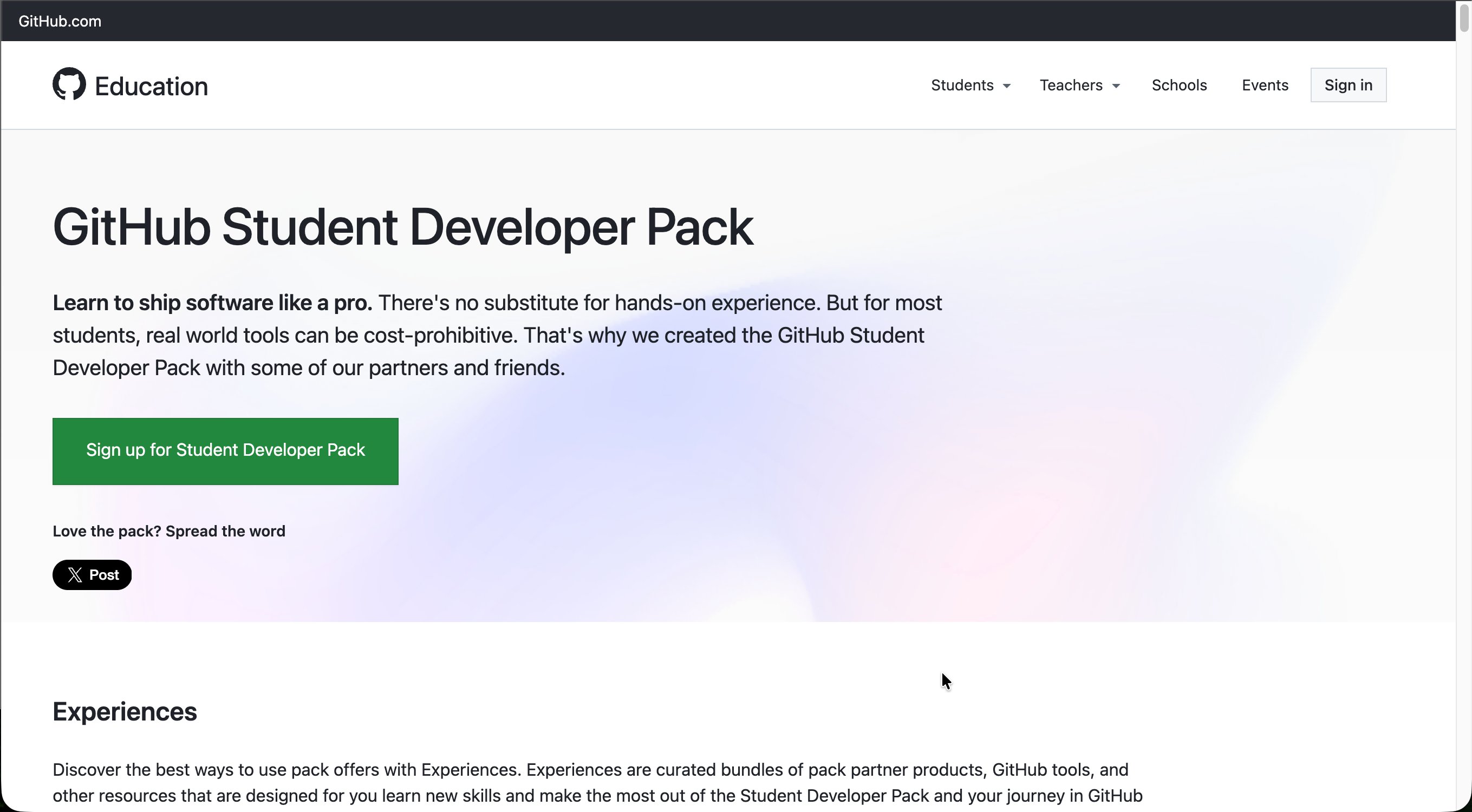
The GitHub Student Pack unlocks free private repositories, cloud credits, and dozens of partner tools. Go to education.github.com/pack and choose Sign up for Student Developer Pack.
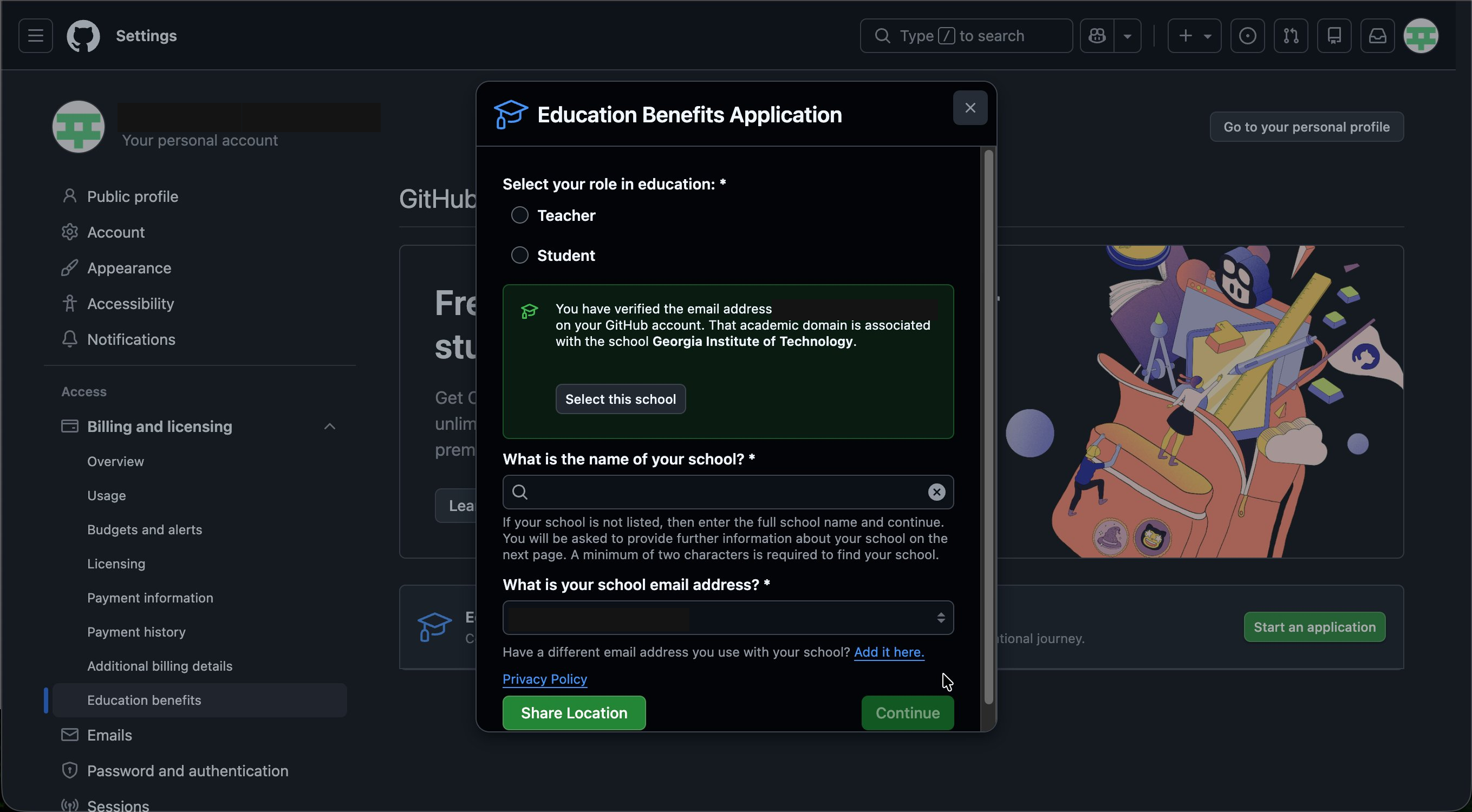
Sign in with your GitHub account and start the Education Benefits Application. Select Student, confirm your verified gatech.edu email, and enter Georgia Institute of Technology as your school. Submit the form. Approval usually arrives by email within a few days. For what the Pack includes and who qualifies, see GitHub’s guide to GitHub Education for students.
Step 5: Install JetBrains IDEs for coding
JetBrains makes professional IDEs like IntelliJ IDEA and PyCharm. Students get the full lineup for free. Request a license at jetbrains.com/student using your GT email. After JetBrains verifies you, download the Toolbox App and install any IDE you need. Your license renews each year while you stay enrolled.
Step 6: Download MATLAB for math and engineering
GT holds a campus-wide MATLAB license, so you skip the usual student fee. Sign in at matlab.mathworks.com with your GT email and link your account to Georgia Tech. Then download MATLAB, Simulink, and the toolboxes your courses require. Install the desktop app, and you can run your assignments offline. For setup help, GT’s MATLAB site walks through the network and campus-wide license options.
Step 7: Connect the campus VPN for off-campus access
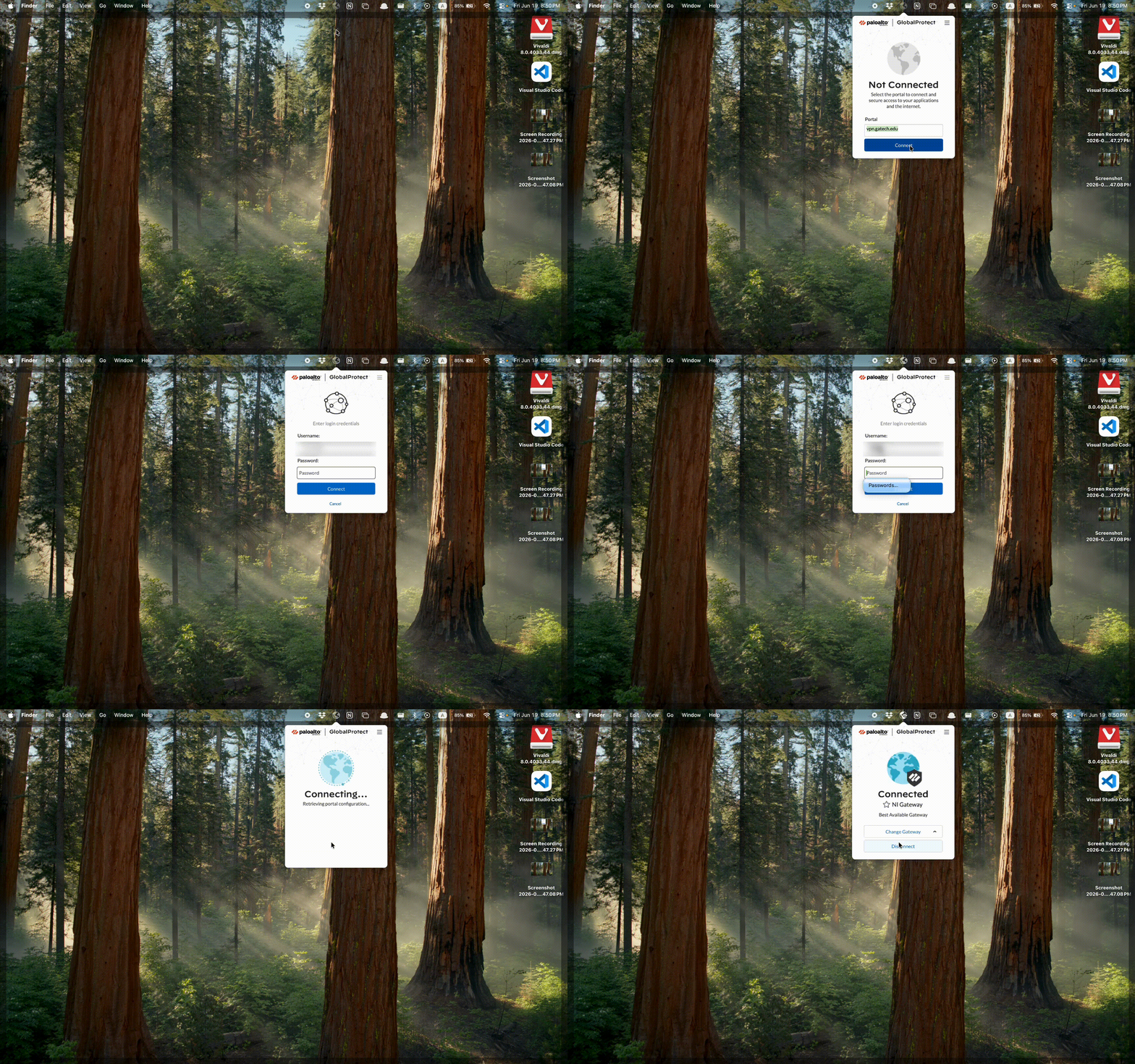
Some licensed software and library databases only work on GT’s network. The VPN solves that from anywhere. Download GlobalProtect from GT’s VPN page and install it. Enter vpn.gatech.edu as the portal, sign in with your GT credentials, and approve the Duo prompt. When the status reads Connected, you are on the campus network.
Step 8: Explore OnTheHub for everything else
Looking for more? GT’s OnTheHub store lists extra free and discounted titles beyond the big names. Browse it for tools specific to your major. For eligibility questions, bookmark the ServiceNow knowledge base, where OIT documents who can use each license.
Step 9: Request Google for Education (Gemini and NotebookLM)
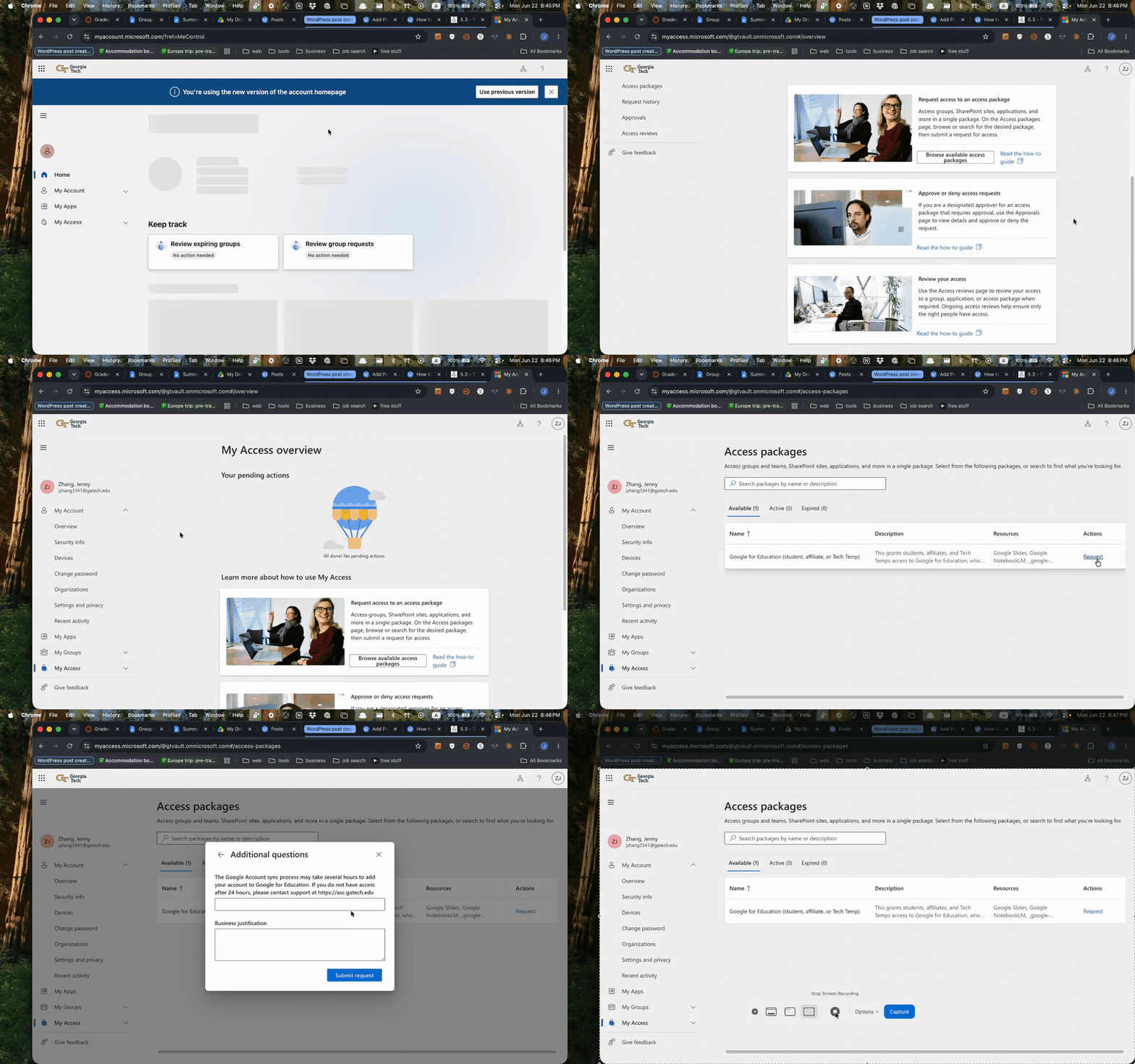
Georgia Tech also gives students Google’s AI tools, Gemini and NotebookLM, through a Google for Education license. Because these licenses are limited, you request access through the MyAccess Packages portal. Sign in at myaccess.microsoft.com, open My Access, and find the Google for Education (student, affiliate, or Tech Temp) package. It grants tools like Gemini, NotebookLM, and Google Workspace. Choose Request for yourself, then Continue. Your request is submitted, and access follows once it is approved. For what each tool does, see GT OIT’s Gemini and NotebookLM announcement.
Not Sure Where to Start?
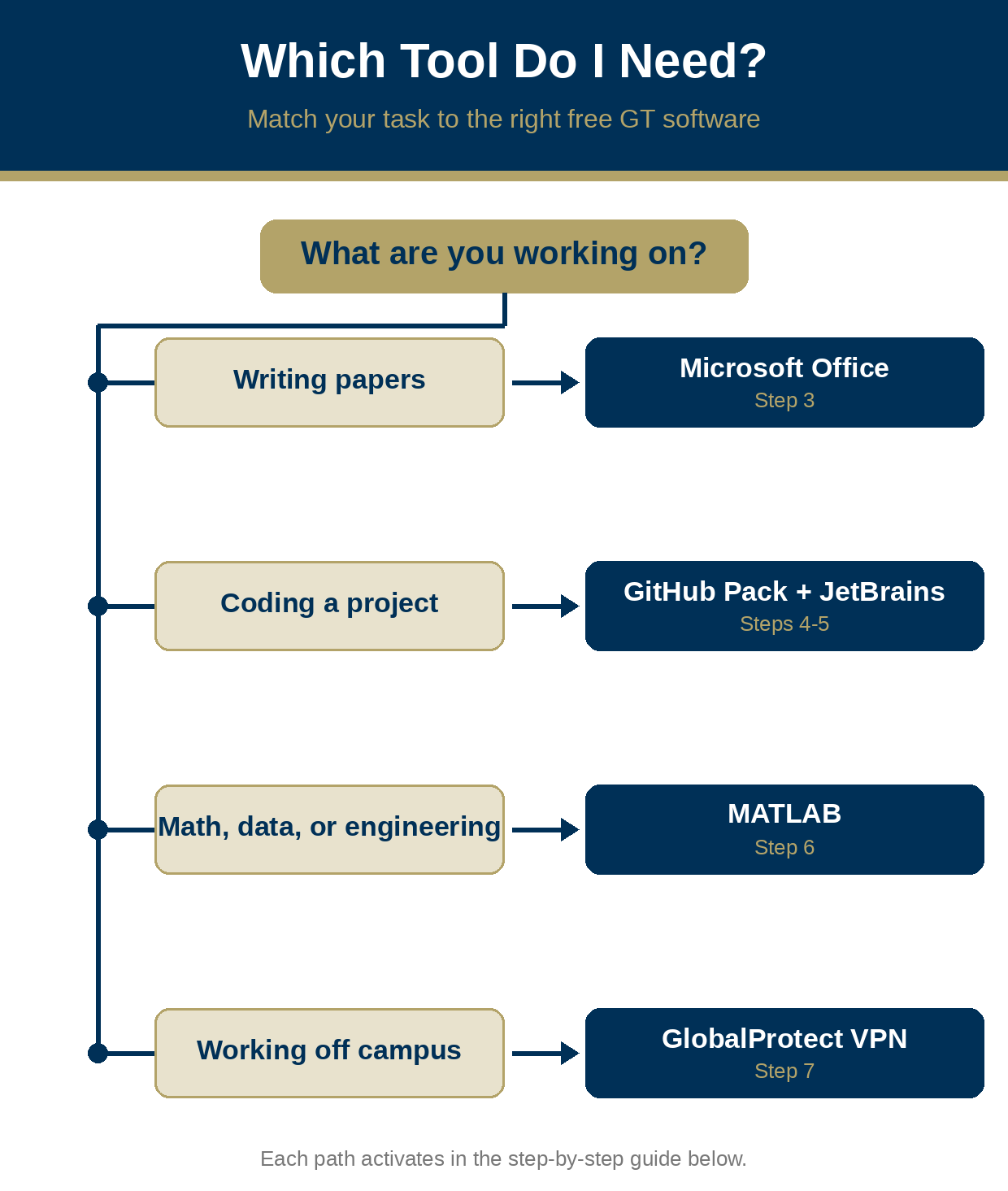
If you only need one tool right now, start with your task. The chart below maps a common assignment to the right software and the step that turns it on.
You’re Set
With these tools installed, you have claimed hundreds of dollars in software using nothing but your GT login. Bookmark this page and share it with your floor. Check back each semester, because GT updates its offerings, and so will we.
Further Reading
These official resources back up the steps above and answer eligibility questions:


Leave a Reply