
Everything you need to know to jump into course registration, including course selection, website navigation, and common pitfalls.
Authors: Prajwal Saokar and Colin Vu
Course registration is a notoriously complex and even distressing part of being an underclassman at Georgia Tech. Countless students have felt the stress of walking out of their first orientation with only one or two classes and no understanding of how to use the tools at their disposal.
While there are many fragmented guides for each part of the process, there are no cohesive manuals for students to understand how these different components come together. How do you translate your degree requirements into a functioning schedule?
This guide will walk you through a series of approachable and actionable steps from end-to-end. We will describe how to go from understanding your DegreeWorks to strategically planning and ultimately registering for your classes, all while lowering the stress and anxiety many students feel.
By having a consolidated set of resources and checklists, you can ensure that you know how to handle the edge cases that come up during registration. You will also learn how to correctly use the technologies provided by Georgia Tech to check prerequisites, substitutions, and lab additions.
Ultimately, our guide aims to help you understand how to get the classes you need, while allowing you to flexibly explore your interests without affecting your graduation timeline.
Step 1: Dissecting course types and requirements
Your degree program will consist of a series of general and major-specific courses, some of which will be part of sequences that build upon one another.
Most bachelor degrees at Georgia Tech consist of 126 credit hours (where one credit hour maps to approximately 3 hours of work per week). These hours are split between a variety of different lecture and lab courses.
General
These are your standard, usually lecture-based courses. They take up the majority of your core requirements and major-specific courses and are generally 3 credit hours, with few exceptions.
Labs
Labs are courses designed to be hands-on supplements, usually for science and engineering classes. Labs are typically corequisites and not independent sections, meaning they must be registered for in conjunction with a linked lecture course. Courses that have lab components are usually 4 credit hours overall.
Audits
Taking a course for no credit and no letter grade is considered an audit. These courses allow you to learn material without your performance impacting your GPA, although you will still pay for the credit hours.
Special Topics
These consist of temporary, experimental, or very specialized courses that are not part of the permanent catalog of options at GT. These can come in many different forms, but across majors, they oftentimes show up as X803 in OSCAR depending on the level of the course.
Step 2: Understanding the course registration timeline
Registration at Georgia Tech is split into two distinct periods. Knowing which phase you are in dictates what actions you can take.
Phase I
This phase usually begins about halfway through the previous semester for returning and current students (so this does not apply to incoming freshmen). Time tickets are based on the number of credit hours you’ve already accumulated, so students closer to graduating receive the highest priority.
Phase II
This usually starts the week before classes and runs up through the end of the first week of classes (sometimes called “syllabus week”). This is when new incoming students register, and returning students can adjust their schedules, add/drop classes, and move through waitlists.
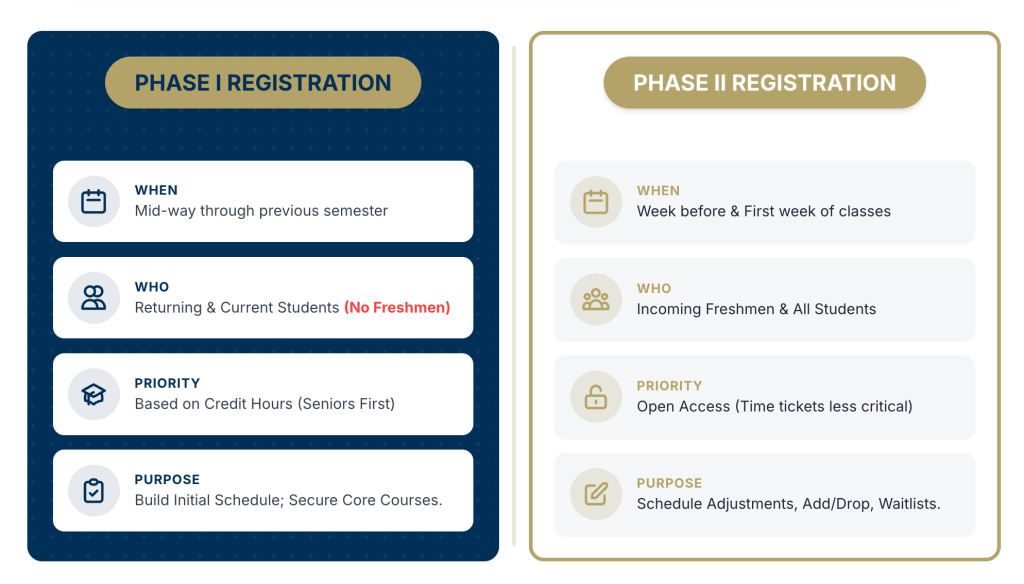
Infographic created by authors. Data sourced from the Georgia Tech Registrar’s Office.
Step 3: Walking through the course registration platform (OSCAR)
OSCAR Tabs
You access OSCAR through BuzzPort. The most important navigation path to remember is: Student Services & Financial Aid -> Registration.
OSCAR Features
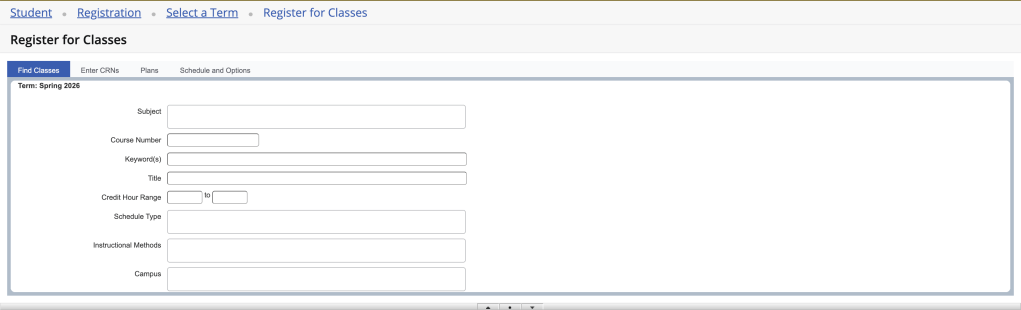
Look Up Classes: A search engine where you can search for courses, view available seats, check waitlist capacities, and find Course Registration Numbers (CRNs).
Add/Drop Classes: The actual worksheet where you type in your CRNs to commit to the schedule or drop a class.
Plans: This menu allows you to pre-set worksheets containing your ideal schedule and variations of it, enabling you to quickly add blocks of courses at one time when registration opens up. This is particularly helpful for underclassmen who may be competing for courses during hectic time slots.
Step 4: Adapting to get the classes you need
Before Registration
Find out your exact Time Ticket date and time in OSCAR. Clear up any holds on your account (like immunization record issues or missing transcripts if you are a new student).
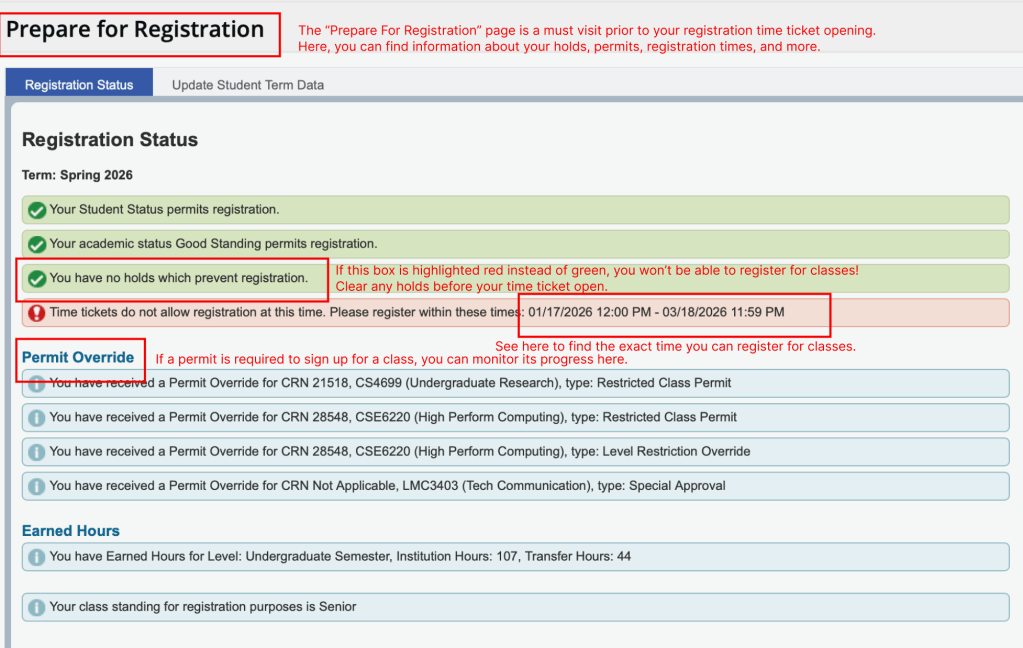
1. Holds: Ensure the holds box is green. If it is highlighted red, you will not be able to register for classes and must clear the hold immediately.
2. Time Tickets: Check this line to find the exact date and time your registration window opens.
3. Permit Overrides: If a class requires a permit to sign up, you can monitor its progress here.
Image source: Georgia Tech OSCAR. Annotations by authors.
Next, map out Plan A, Plan B, and Plan C, and have all your CRNs written down and ready to go.
During Registration
Make sure to be aware of exactly when your time ticket opens. Add your CRNs by priority into the Add/Drop menu.
If a class is full but has a waitlist, OSCAR will give you an error. You must manually adjust your registration dropdown to “Waitlist” to actually join the waitlist line.
Moreover, if you have to drop courses due to conflicts, make sure that you use the “Conditional Drop” menu so that you don’t drop a course and fail to replace it.
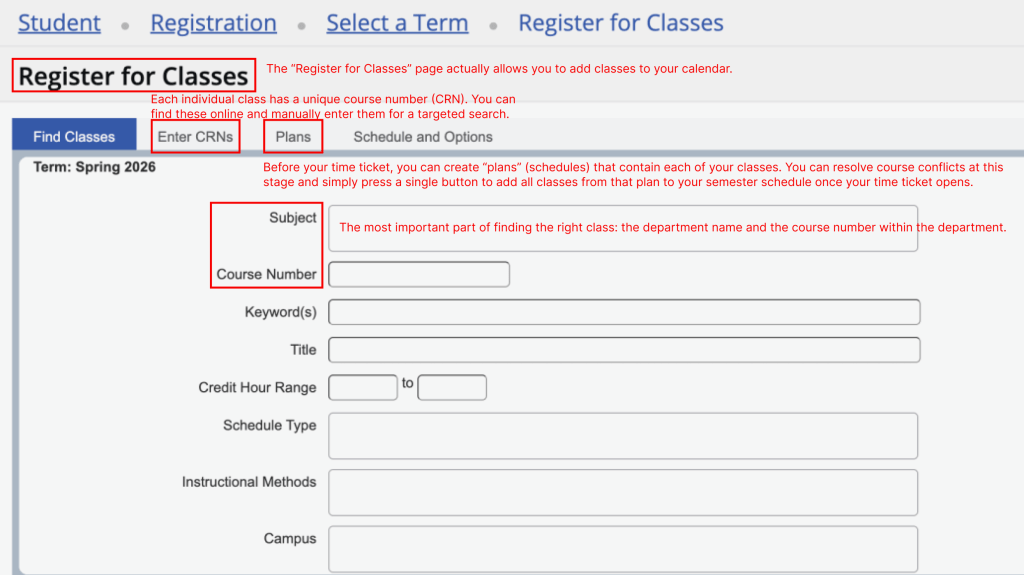
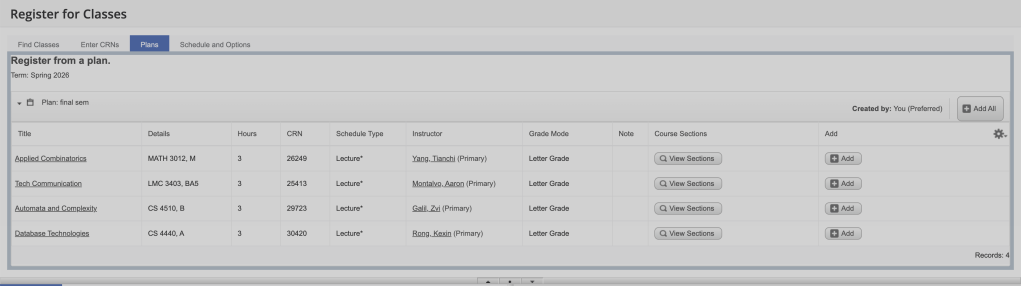
1. Register for Classes: This page actually allows you to add classes to your calendar.
2. Enter CRNs: Each individual class has a unique course number (CRN). You can manually enter them here for a targeted search.
3. Plans: Before your time ticket, you can create “plans” containing your classes. If you handle conflicts beforehand, you can add your entire schedule with one click.
4. Subject: The most important part of finding the right class is entering the department name and the course number within that department.
Image source: Georgia Tech OSCAR. Annotations by authors.
After Registration
Pay close attention to your GT email, especially during Phase II. If a spot opens up, the waitlist system moves automatically, and your window to claim the seat will be very short.
Verify your final schedule and make sure you pay your tuition via the Bursar before the deadline so you don’t get dropped from your classes. Meet with an academic advisor if possible to make sure you have everything sorted out.
Step 5: Avoiding Common Mistakes
- Missing Your Waitlist Window: When you reach the front of a waitlist, OSCAR sends an automated email. You have exactly 12 hours to log in and claim the seat. If you miss it, you are dropped from the waitlist entirely. Advisors have very little wiggle room to help you if you miss your chance here.
- Logging in late for your Time Ticket: Even being 15 or 20 minutes late can mean losing a spot, especially if you are in a high-demand course.
- Forgetting Co-requisites: Registering for labs can be somewhat confusing. Make sure that the lecture and lab sections you select for a given course are actually linked together on OSCAR, otherwise you won’t be able to register.
Step 6: Figuring out what to do when you don’t get the classes you need
Professors
While professors generally cannot manually bypass waitlists or add you to a full class, they can be a great resource. You can ask them if new sections are going to open up in Phase II or if the seat capacity is set to expand.
Advisors
Your academic advisor is your best resource here, but make sure to be respectful of their time and understand how they can help you.
They can issue permits (for things like prerequisite overrides if you took a similar class elsewhere), help you understand alternative plans to keep you on track, and ensure your schedule makes sense for your personal goals.
VIP/Junior Design
Getting started on your junior design path early can be a great way to use time slots that you may not have been able to fill with traditional courses. Because almost all majors have a multi-semester hands-on component, starting early gives you more flexibility in the future.
There are a lot of options for research, Vertically Integrated Projects (VIP), capstone projects, and others at Georgia Tech. Try to explore these paths early if registering for standard lectures isn’t working out.
Emergencies
If you are a graduating senior and absolutely need a specific, full course to graduate that semester, contact your academic advisor immediately to request a “Degree Candidate Override.” They are invested in your success and will be happy to help.
If you are on a waitlist or trying to get into a specific junior design project, emailing the professor directly may also be beneficial.
Resources for learning more
- Registration Dates: Check the official Georgia Tech Academic Calendar to view current and upcoming registration phases, time ticket dates, and drop deadlines.
- Schedule Building: Plan your upcoming semesters using GT Scheduler, a student-made tool that lets you test out different class times and combinations before your time ticket
- Course Research You can look at reviews, grade distributions and other information at Coursicle a platform that lets you learn more about and organize various course options
- Registrar Tutorials: Watch the official video tutorials for navigating OSCAR provided by the Registrar’s Office.
- Degree Planning: Learn how to create and manage your DegreeWorks plans to stay on track for graduation.
- Payment Instructions: Review the Bursar’s student payment instructions to ensure your tuition is paid before the deadline so you aren’t dropped from your classes.
- More Guides: Explore additional student guides and campus tips on the GTHow homepage.


Leave a Reply