
By Tanay Shrivastava and Micayah Taye
Why Mastering Your BuzzCard Matters
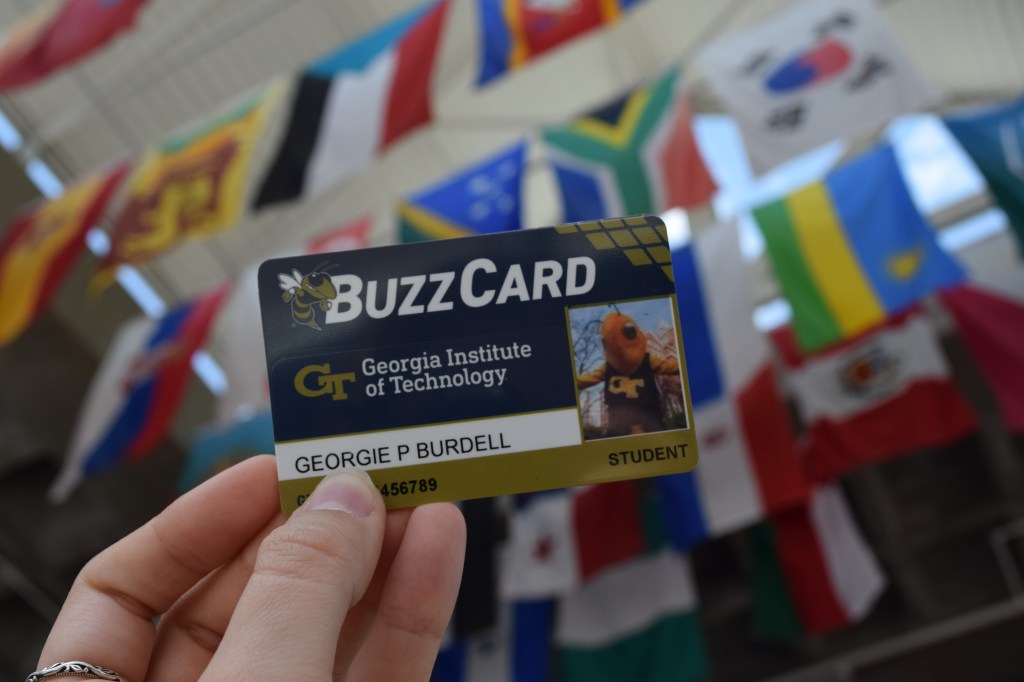
The BuzzCard is used by every Georgia Tech student, yet it is often overlooked or used incorrectly. Many students lose money by paying unnecessary sales tax or waste time dealing with failed taps because they treat it like a simple ID card. This leaves students confused about features and common technical issues with their ID. As a result, most students only use basic functions and miss opportunities to optimize their BuzzCard usage. Our project, “BuzzCard Pro“, aims to provide a clean cut 10-step technical workflow that translates the hidden technical and financial logic of the BuzzCard into actionable steps. By the end of this guide, no student is left helpless due to a technical lockout or a drained account.
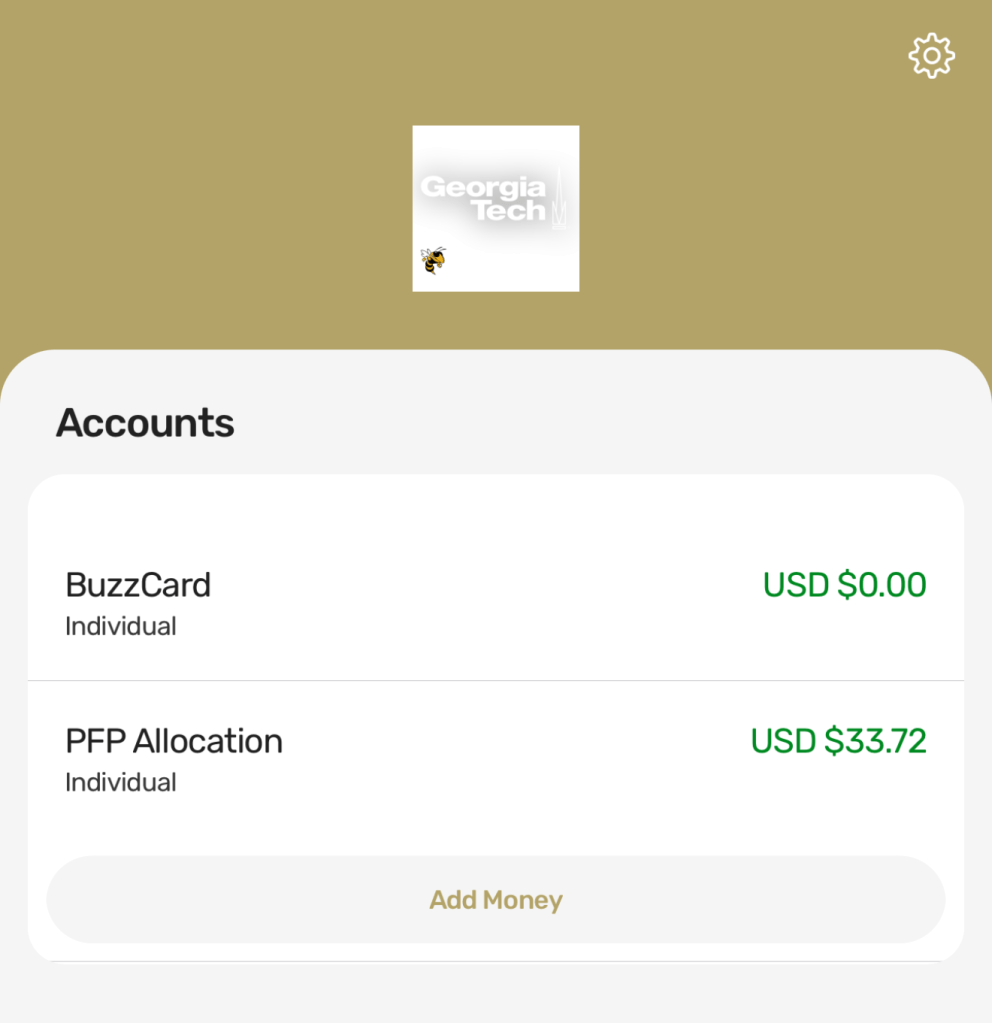
Getting Started: Digital Setup
Step 1: Digital Provision (Adding Virtual Payment) via eAccounts
To activate your mobile credential through the Transact eAccounts app or site.
- Download the Transact eAccounts app from the App Store or Google Play.
- Log in using your Georgia Tech Single Sign-On (SSO).
- Navigate to the Mobile Credential section.
- Add your BuzzCard to Apple Wallet or Google Wallet.
- Confirm activation by tapping your phone on a compatible campus reader.
Once configured, your phone can function as your BuzzCard for building access, dining purchases, and campus services.
Step 2: The Priority Setting for NFC (Near-Field Communication)
Prevent your phone’s NFC “tap” system from prioritizing your credit card instead of your BuzzCard when tapping a campus reader.
- Open your phone’s wallet settings.
- Locate the default payment or transit card settings.
- Set your BuzzCard mobile credential as the preferred campus credential.
- Test the configuration at a campus card reader.
This ensures your BuzzCard activates immediately when tapping readers across campus.
Financial Optimization
Step 3: The 10% Dining Dollar Bonus Hack
To maximize Georgia Tech’s 10% bonus when depositing Dining Dollars in certain increments.
- Log in to the eAccounts portal or mobile app.
- Navigate to Add Money.
- Select Dining Dollars.
- Deposit $400 or $600 increments to receive the bonus.
- Confirm the deposit and verify the updated balance.
Using this strategy helps students stretch their dining budgets throughout the semester.
Step 4: Tax-Exempt Logistics
You can use Dining Dollars at many retail dining locations tax free, such as:
- Chick-fil-A
- Panda Express
- Student Center Restaurants
Check that the transaction is coming from Dining Dollars to receive the tax exemption.
Step 5: Account Hierarchy Explained
Your BuzzCard includes multiple financial accounts, each serving different purposes:
- Meal Swipes – Used at dining halls.
- Dining Dollars – Tax-free purchases at campus dining locations.
- BuzzFunds – General spending for laundry, printing, and other campus services.
Understanding the automatic spending hierarchy ensures that the correct account is used for each transaction.
Hardware and Troubleshooting
Step 6: Hardware Identification (Schlage vs. Legacy HID)
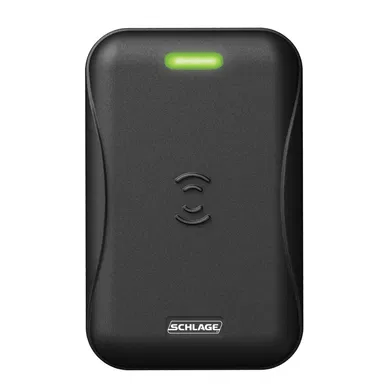
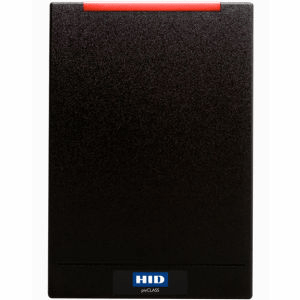
Not all campus card readers support mobile credentials. There are two common types:
- Schlage Readers (Black) – Compatible with mobile credentials.
- Legacy HID Readers (Grey) – Often require the physical BuzzCard.
Knowing the difference can help you quickly identify whether your phone will work at a specific reader.
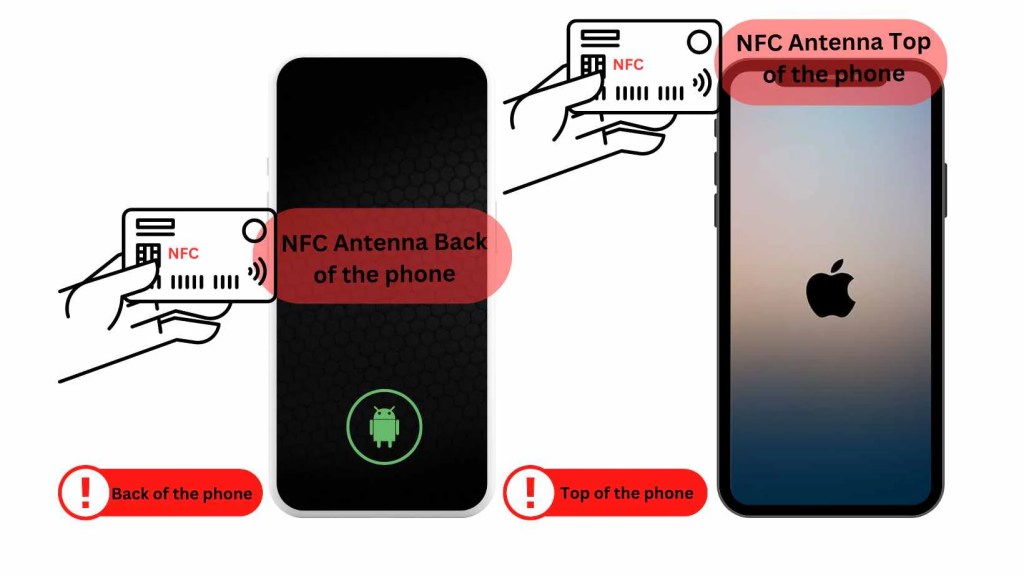
Step 7: Finding Your NFC Sweet Spot
Many tap errors occur because students do not place their phone near these internal NFC antennas.
- iPhone: NFC antenna near the top edge of the phone.
- Android: Usually located near the center or upper back.
Holding the correct part of your phone near the reader improves tap reliability.
Step 8: Physical Chip Safety & Wireless Chargers
Placing your physical BuzzCard inside a phone case can cause problems when using MagSafe or wireless chargers. This can damage the card’s contactless chip. To prevent this:
- Remove the card before charging.
- Store the card separately from your phone.
- Avoid prolonged exposure to wireless charging coils.
Step 9: The Two-Minute Security Lockdown
After three failed tap attempts, some campus systems temporarily lock access. To resolve this:
- Wait approximately two minutes.
- Retry using either your mobile credential or physical card.
- Confirm the correct NFC placement when tapping.
This prevents repeated lockouts and access issues.
Step 10: Emergency Freeze Protocol
Steps if your BuzzCard or mobile credential is lost, and to immediately deactivate it using the eAccounts app:
- Open the Transact eAccounts app.
- Navigate to Card Management.
- Select Deactivate Mobile Credential.
- Confirm the action.
This instantly prevents unauthorized spending and protects your campus funds.
Become a BuzzCard Power User
The BuzzCard is far more than a student ID. It is a digital ecosystem connecting identity, payments, building access, and campus services. By following this 10-step workflow, you can: save money through tax-exempt purchases, optimize Dining Dollar bonuses, avoid NFC tap errors, protect your account if your credentials are lost
Instead of reacting to problems when they occur, mastering these systems allows you to navigate campus life efficiently and confidently.
Image References
Transact eAccounts . Micayah Taye
Schlage Card Reader. (n.d.). C-and-B Logo. https://www.cookandboardman.com/schlage-electronics-mt15-multi-technology-reader-single-gang-mount/?srsltid=AfmBOooXMOx_ovjcKhFr-i4GOtWK0TIOwwFz9HjrxDLnkTLO16dGk0GW
HID Card Reader. (n.d.). ID Card Printer Savings. https://www.idcardprintersavings.com/HID-MultiClass-R40-Reader-Black-Standard-Keyset-p/920phrtek00005.htm
NFC Sweet Spot. (n.d.). Tagify. https://nfctagify.com/blogs/news/exploring-nfc-technology-android-vs-iphone-capabilities
Buzz holding Buzzcard. (n.d.). Instagram. https://www.instagram.com/p/DDhfZlrRI_h/


Leave a Reply