
Created by: Ethan Loo & Jason Lin
Introduction
Georgia Tech’s commitment to equity by providing students with equal access to resources no matter their financial background or economic status is one of the many reasons that gives the school its prestige. Georgia Tech provides free licenses and tools like Microsoft 365, MATLAB, VPN, remote/VLAB options, loan devices/laptops, and even access to its supercomputer clusters. Despite that, many GT students – especially first-years and transfers – aren’t aware of how to access these resources or even that they exist. Students waste hours hunting across scattered webpages, following outdated instructions on dated sites, or even pay for software they already have through GT. Students without powerful laptops or prior experience setting up licensed tools feel this the hardest.
This guide will be a one-stop workflow that helps students quickly figure out what they need, where to get it, the fastest way to make it work, a short troubleshooting checklist for common login/VPN/license issues, as well as where else you can go to get authoritative information. By centralizing the setup process, our aim is to allow students to focus on their coursework, avoid unnecessary costs, while feeling more confident using GT’s resources.
Getting started
Table of Contents
- For assignments & docs: Microsoft 365
- For engineering/math computing: MATLAB
- For 3D modeling: Get SolidWorks
- For off-campus access to GT-only resources: GlobalProtect VPN
- If your laptop struggles or storage is low: Virtual Lab (remote)
Before you install anything, consider how you’ll access it. Your laptop’s storage, processing power, and whether you need offline access all affect which setup method is fastest for your device. The decision tree below helps you choose between a desktop install, web-based access, or the Georgia Tech Virtual Lab (Figure 1).
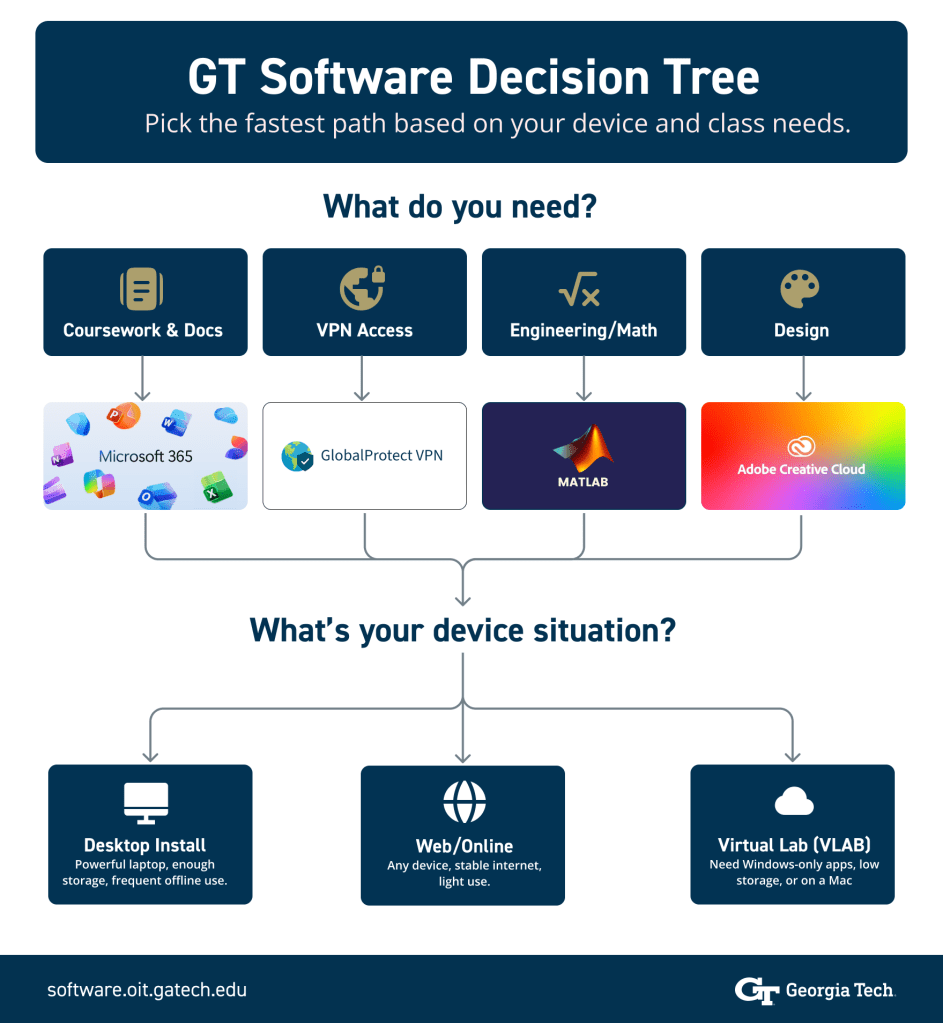
Four software categories branch into three access methods — desktop install, web-based access, and Virtual Lab — based on your device’s storage, processing power, and operating system. Each section of the guide below explains how to set up the recommended option. (Infographic by Jason L. Software logos from Microsoft, MathWorks, Adobe, and Palo Alto Networks.
GT Login + Duo SSO
Before you can sign in to any GT software, you need to enroll in Duo two-factor authentication. You only need to do this once, but you’ll approve a Duo prompt every time you log in after that.
As part of the OIT’s commitment to online safety, you must have Duo activated on your gatech.edu account to access most software and apps. Make sure you can sign in with GT SSO and approve Duo prompts on your phone before downloading anything.
First-time Duo Enrollment:
- First visit Passport and login in with your GT credentials.
- In the home page, click on the “Two Factor Authentication” tab > click “Set up two-factor authentication with your phone” > Follow the instructions for downloading the Duo Mobile app.
- The app is available on the Apple App Store or Google Play Store.
- Install the app, and once done, click “I’m done – continue to phone registration” > fill out the “Add a Phone for Two-Factor Authentication” form. Make sure to check the “Send SMS text with Duo app activation instructions to this phone” box.
- Passport will then set up 2FA, which might take a while.
- Once finished, you will receive 2 text messages with instructions for setting up Duo. 2FA is now enabled with this account.
- Click the link in the text message, which will bring you to the Duo Mobile app. Add your GaTech account to the app.
- Congrats! You now have Duo setup!
For more information, including how to set up a Duo passkey, visit OIT’s two-factor authentication page. If you need assistance enrolling, contact the OIT Enterprise Service Desk.
Once Duo is activated, every GT login follows the same four-step flow. If you run into issues at any step, the login guide below (Figure 2) maps each common problem to the step where it occurs.
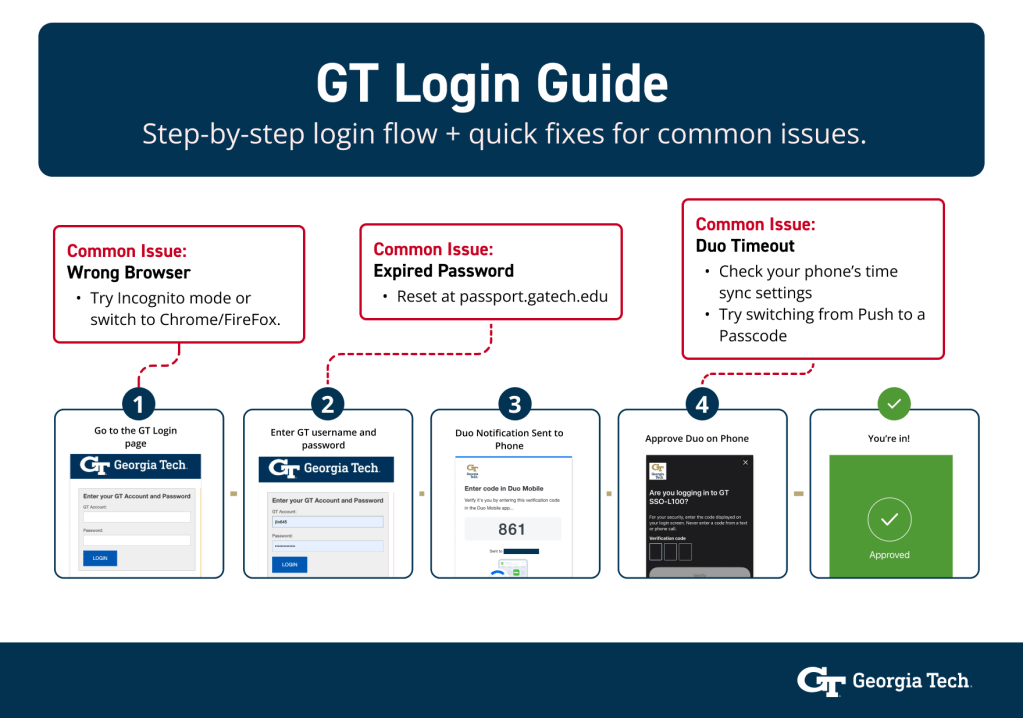
The GT Single Sign-On process moves from the login page through Duo approval in four steps. Red callout boxes flag the most common failure points — wrong browser, expired password, and Duo timeout — at the step where each typically occurs, with a quick fix for each. (Infographic by Jason L. Sources: Georgia Tech OIT, Duo Security.)
Use the Official GT Software Hub
Before following any third-party instructions, always start from the official OIT Software and Resources hub. The annotated screenshot below (Figure 3) highlights where to find the download portal on the page.
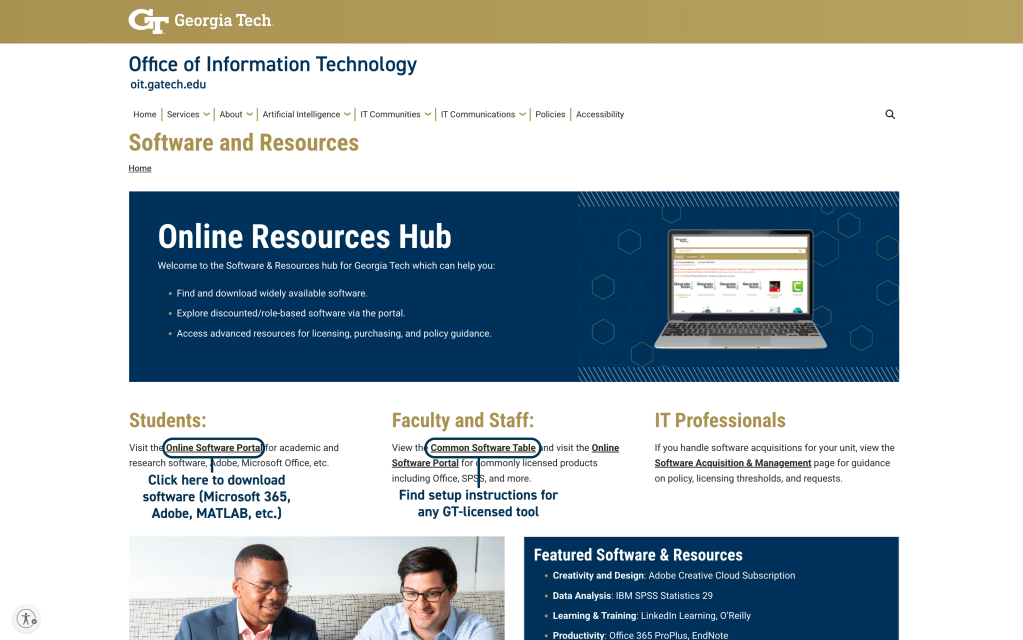
Figure 3: The OIT Software and Resources page organizes downloads by role. Under Students, the “Online Software Portal” link leads to Microsoft 365, Adobe, MATLAB, and other software downloads. Under Faculty and Staff, the “Common Software Table” links to setup instructions for every GT-licensed tool. (Screenshot by Jason L. Source: Georgia Tech OIT.)
You can also click “View the Common Software Table” to find setup instructions for each tool. This ensures you’re following current, authoritative setup instructions rather than outdated guides from other sources.
Install and Access Core Tools
How to install Microsoft 365 (desktop vs web)
Georgia Tech provides Microsoft 365 access, which includes Word, Excel, PowerPoint, and OneDrive. You can either install the desktop apps or use the web versions in your browser. The best choice depends on how often you use Office, your laptop storage, and whether you need advanced features. You do not need a product key to activate Microsoft 365 App for enterprise. You can activate the installation by signing in with your GT account and password.
Desktop Apps
Pros:
- Most features available: advanced Excel features, heavy Word formatting, and PowerPoint editing.
- Works offline (they sync later through OneDrive).
- Better performance for big files
- More reliable formatting
Cons:
- Older laptops can feel slower when multiple Office apps are open.
- Requires storage and updates
Each student, faculty, or staff member can run Office on up to five machines (Mac or PC). You can also run Office Mobile for Android or Office Mobile for iPhone on up to 5 mobile devices. If you’re on Windows, Word, Excel, PowerPoint, Outlook, OneNote, Access, and Publisher are all included with Microsoft 365 App for enterprise. If you are using macOS, Word, Excel, PowerPoint, Outlook, and OneNote are included.
Steps to get set up:
- Navigate to https://aka.ms/office-install and sign in if prompted.
- In the Apps & Devices tab, click Install Office to download the Office installer.
- Follow the instructions prompted by the installer.
- You may be required to sign in when launching the app for the first time.
Web Apps
Pros:
- No setup required
- Low to no storage use
- Great for collaboration and real-time collaborative editing
- Works on any device:useful if you switch between laptop/tablet/borrowed device.
Cons:
- Needs stable internet
- Fewer advanced features: formatting tools may be limited.
- Large files can lag
Navigate here: oit.gatech.edu/email for central online access to all Microsoft 365 apps.
Get MATLAB (license + install OR online training)
MATLAB is commonly a requirement in engineering, math, and some CS courses. You usually have two practical options: install MATLAB locally or use an online/remote option (browser/Virtual Lab) if your laptop doesn’t have sufficient processing power.
Install MATLAB Locally
Pros:
- Best performance: smoother for large projects, datasets, or toolboxes.
- Works offline
- Direct access to local folders, class files, and saved outputs.
- Fewer “remote session” quirks like lag or disconnects.
Cons:
- MATLAB and toolboxes can take significant space.
- License sign-in, installer choices, and updates can be confusing.
- Low-RAM devices may struggle.
Online/Remote MATLAB
Pros:
- Hardware requirement
- Fast start
- No storage burden
Cons:
- Internet-dependent
- Uploading/downloading class files may add steps.
Steps to get set up:
- Navigate to software.oit.gatech.edu and click “View the Common Software Table”
- You will be brought to a new page where you can scroll down and find MATLAB.
- Click “How to Obtain MATLAB”.
- You will be brought to the software’s page where you can add it to cart and check out. Note that the page can be finicky, especially if you navigate to the previous page.
- Shortly after successfully checking out, you will receive an invoice email in your gatech.edu Outlook. You can either navigate to mathworks.com or follow the link provided in the invoice.
- Click “Sign in to get started” and follow the sign in flow.
- Once you have access to matlab.mathworks.com/, you are free to use it online or install the client app.
- Navigate to the “Online Training” tab for tutorial and training resources.
Get SolidWorks
SolidWorks is powerful CAD software and can be demanding on laptops. If your course requires it, follow the GT-provided license and installation instructions first.
When you should install locally
- You have a Windows machine with enough storage and a decent CPU/RAM.
- You’ll use SolidWorks often.
- You need the best performance for assemblies and detailed models.
When you should use Virtual Lab instead
- You’re on a Mac (or don’t want to deal with Windows setup).
- Your laptop overheats, lags, or crashes running heavy software.
- You only need SolidWorks occasionally.
Steps to get set up:
- Navigate here for set up instructions for personal devices and here for instructions for institute-owned devices. If the links are expired, these 2 links may contain more information:
- (For personal devices) Make sure to read and abide by the license restrictions. Navigate to and read the LICENSING DOCUMENT.
- Download the installer and register a MYSOLIDWORKS student account under your Outlook gatech.edu address.
- You will need your school’s serial number to install and activate the license.
- e.g., Georgia Tech – COE: 90200084817570645SHF4F86
- (For institutional devices) Make sure to read the Research License & Associated Fee section.
- Below that, you will find instructions to follow and 2 licenses (Education & Research). If you are unsure of which license represents your use case best, contact OIT @ oit.gatech.edu/contact-us
Access from Anywhere
Setting up GlobalProtect VPN (off-campus access)
Note: In order to use Georgia Tech’s VPN, you must have 2FA enabled. To enable 2FA, navigate here.
- In oit.gatech.edu/software-and-resources/, click “View the Common Software Table” and scroll down the table to GlobalProtect.
- Click “How to obtain GlobalProtect”.
- Make sure you meet the eligibility requirements and click “Download GlobalProtect Here”.
- You will be redirected to a vpn.gatech.edu page. Download the installer respective to your OS.
- Follow the installer’s instructions and you are done!
Once the installer finishes, you’ll need to connect to GT’s VPN for the first time. The video below (Figure 4) walks through the process — starting from installation, signing in with SSO, approving Duo, and confirming your connection.
Figure 4: Video walkthrough of the GlobalProtect VPN connection process — installation, signing in with SSO, approving the Duo prompt, and confirming VPN connection status. (Video by Jason L.)
Using Virtual Lab (remote access)
To get VLab set up, you will need to download the Citrix Workspace app.
- Navigate to mycloud.gatech.edu. Sign in with your GT credentials.
- The site will detect if you have the Citrix Workspace app installed. If not, you will be provided with the installer. Download it and follow the installer’s instructions.
- Once installed, you do not need to perform any actions on the client. Navigate back and reload the page.
- The site should auto-detect the Citrix Workspace app and you will be redirected to the VLab page.
- Congrats, you can now access your remote machine from your device!
FAQ
Quick Fix Checklist
Where to Get Authoritative Help
Go to GT OIT pages or contact the Office of Information Technology @ oit.gatech.edu/contact-us


Leave a Reply