
By Seo Eun Hwang, Nash Moore, and Pranav Katam
At a glance: 9 steps • About a 6-minute read • Written for first-year Georgia Tech students
Introduction: Why Parking Is Harder Than It Looks
Parking at Georgia Tech is often a very confusing process, particularly in your first year. We discovered this when we spoke to Jordan Woods, a first year football player from out of state. Jordan is after a permit for the Peters Parking Deck. It’s right next to the football facility so that’s the one that works best with his schedule. He doesn’t have one. In fact he discovered that some of the 2nd and 3rd years are still on the waitlist for that very same deck.
Jordan’s story is by no means unusual. We’ve all got our heads around an online portal. The difficulty lies in the rules and the jargon. What’s the point of a waitlist? What if your lot is full? If you get it wrong you could end up with a long walk, a late turn up to practice or a parking ticket.
That’s why we’ve written this guide. In 9 steps we’ll show you how to go about selecting and purchasing a permit, how to work out where you’re permitted to park and how to avoid the mistakes that result in you getting a ticket. We’ve also produced two infographics (one which compares the different types of permit and one which will help you decide what to do if your lot is full). Screenshots, a map and a short video will show you exactly where to click and where to go. This guide is for you if you’re a new student, an athlete with a very full schedule or if you’ve never bought a parking permit before.
Key Parking Terms to Know
- Driver Seat: Georgia Tech’s parking website (run by Parking and Transportation Services (PTS)) where you create your account, add your vehicle and purchase your permits.
- Permit: what enables you to park in a particular lot or deck. Each one is linked to a particular location and time period.
- Waitlist: a line for a lot that’s sold out. Being on the waitlist doesn’t in any way mean you can park there.
- Overflow lot: a different lot that PTS will send you to if yours fills up.
- Citation: A parking ticket. Most of them come with a fine.
Step-by-Step Guide to Parking at Georgia Tech
Step 1: Log In to Driver Seat
Go to Driver Seat (use the ‘Open Driver Seat’ button at the top of this guide) and sign in with your GT account. Make sure your email and phone number are correct as PTS will use those to contact you about permits and waitlist offers.
Multimodal Element 1 (planned): Annotated Driver Seat screenshot. Screenshot of the Driver Seat home screen with callouts 1, 2 and 3 pointing to the sign in button, the Permits menu and the Vehicles menu respectively.
Caption: Figure 1. The Driver Seat home screen with the three menus you’ll use most clearly labelled.
Alt text: Screenshot of the Driver Seat portal home page. The callouts indicate 1 = sign in button, 2 = Permits menu and 3 = Vehicles menu.
Step 2: Register Your Vehicle
Before you can buy a permit you need to add your vehicle in Driver Seat. Have your license plate number (including plate state), make, model and colour ready. Enter the plate exactly as it appears. A single typo will have the effect of your car looking unpermitted to parking enforcement. If you drive a different car to campus then you’ll need to update your vehicle list prior to parking.
Step 3: Compare Your Permit Options
How often you drive will determine which permit you get. We’ve laid the main options out side by side in the infographic below.
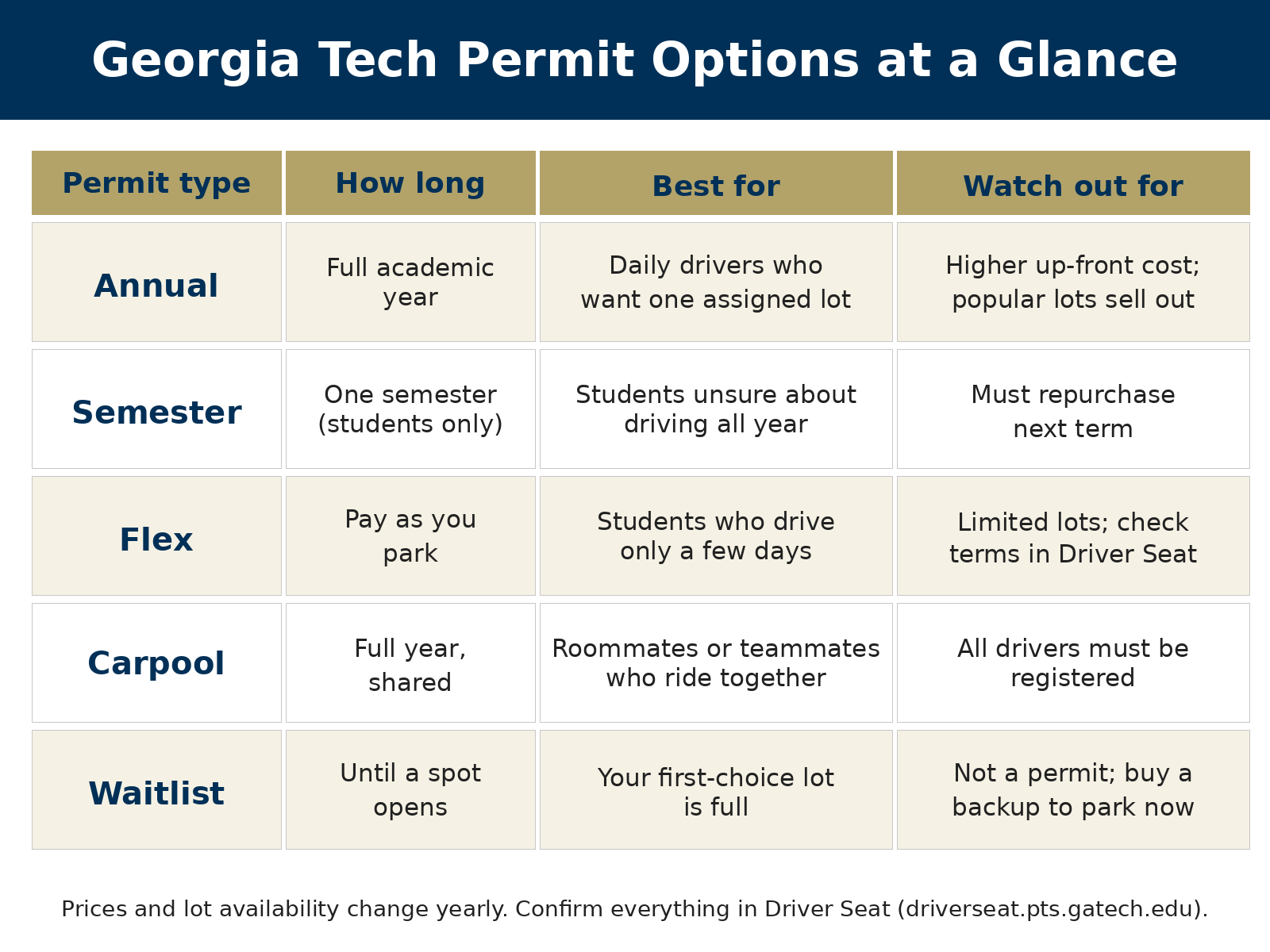
Text description of Infographic 1: Annual permits cover the full academic year and are ideal for the daily driver (though they do have a higher up front cost and the popular lots will sell out). Semester permits are student only and must be re-purchased each term. Flex permits allow you to pay as you go which is good for the occasional driver (though only certain lots will take them). Carpool permits are for the year and all drivers on the carpool must be registered. A waitlist is not a permit so if you need to park now you should buy a backup permit.
Step 4: Mark the Sales Dates and Buy Early
Permits are first come, first served so don’t wait. For 2025–26 the sales opened on July 7 at 9am and permits went on August 15. The dates vary year on year so keep an eye on the PTS news page over the summer and set a reminder on your phone.
Multimodal Element 2 (planned): Checkout walkthrough video. A 60-90 second screen recording walking through the process of selecting a permit, selecting a lot and paying in Driver Seat with closed captions and a text transcript.
Caption: Video 1. Buying a permit in Driver Seat from start to finish in under 90 seconds.
Alt text: Not applicable for video; the video will have closed captions and a full transcript will be available below the video.
Step 5: Choose Your Lot and Join a Waitlist if Needed
If your preferred lot has open spots then buy that permit straight away. If it’s full then Driver Seat will allow you to put yourself on a waitlist for it. Do that, but also buy a backup permit at a lot that still has space so that you can park legally whilst you’re on the waitlist. That’s precisely what Jordan is currently facing at Peters. The flowchart below will walk you through the decision.
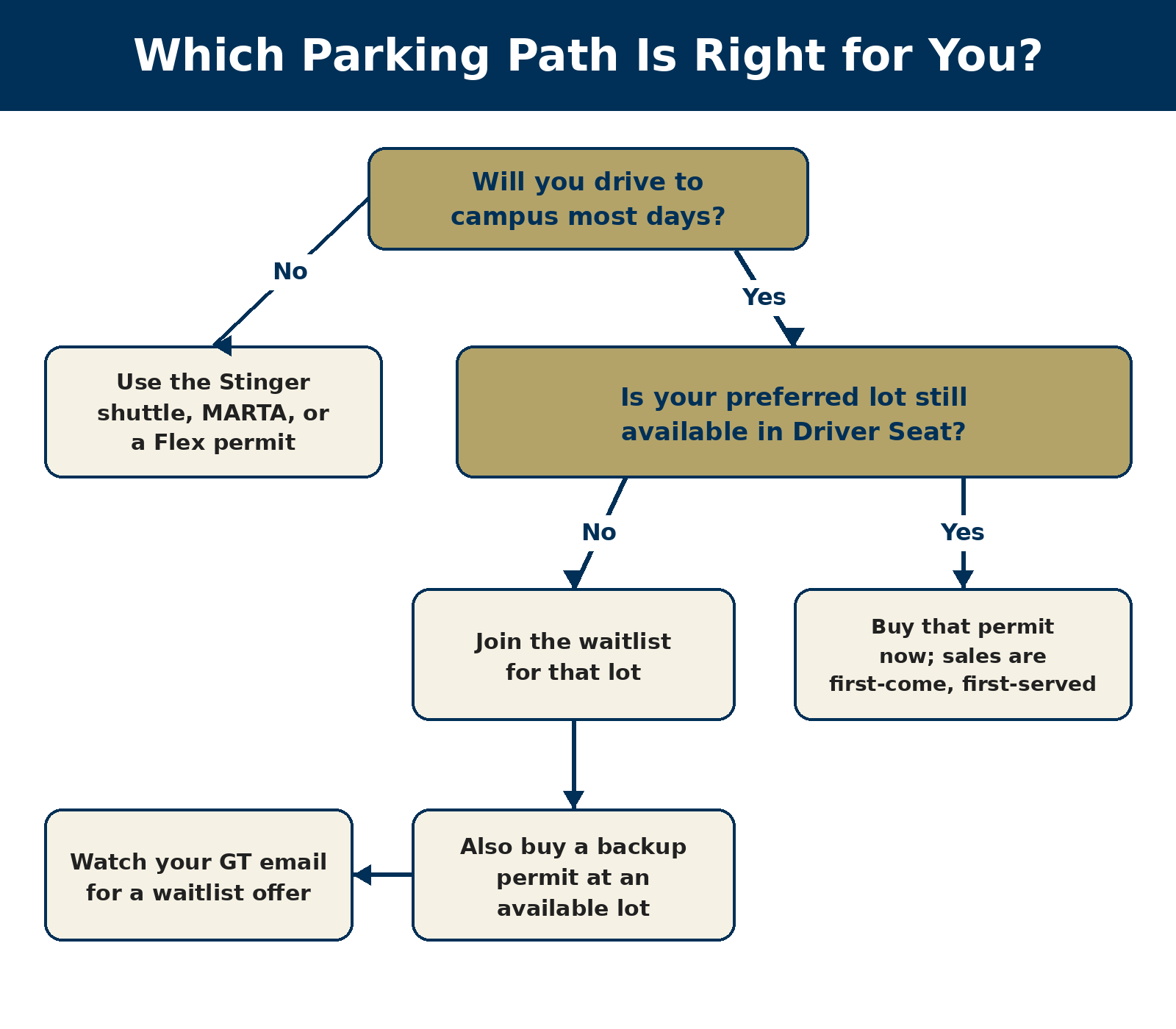
Text description of Infographic 2: First of all, are you going to drive to campus most days? If not then you’ll use the Stinger shuttle, MARTA or a Flex permit. If you are, is your preferred lot still available in Driver Seat? If it is then buy that permit straight away. If it isn’t then join the waitlist, buy a backup permit at an available lot and keep an eye on your GT email for a waitlist offer.
Pro tip: Join the waitlist and purchase a backup permit on the same day. That way you can park legally immediately whilst you’re waiting for a space in your first choice lot.
Step 6: Map Your Lot and Backup Routes
Once you have your permit you can find your lot on the PTS campus parking map and plan your walk to class/practice. Also be aware of the nearest Stinger shuttle stop in case you’re being sent to an overflow lot.
Multimodal Element 3 (planned): Annotated campus parking map. A section of the official PTS parking map with the Peters Parking Deck, the football facility and the adjacent Stinger shuttle stops all highlighted, plus walking time labels.
Caption: Figure 2. Peters Parking Deck and adjacent shuttle stops with estimated walking times to the football facility.
Alt text: Campus map showing the Peters Parking Deck (adjacent to the football facility). The Stinger shuttle stops in the vicinity are circled and the estimated walking times between each location are given.
Step 7: Learn Where You Can and Cannot Park
Your permit is only valid in the lot or deck that it’s assigned to. Always check the posted signs and don’t enter any of these spaces without the appropriate permit:
- Accessible (ADA) spaces
- Reserved, service, or department spaces
- Loading zones and fire lanes
- Visitor or pay-by-space areas
- Lots closed or restricted for game days and special events
Step 8: Avoid Common Citation Mistakes
- Parking before your permit starts, or after it runs out
- Driving a car you haven’t added in Driver Seat
- Thinking a waitlist spot lets you park in that lot (it doesn’t)
- Pulling into a random nearby lot when yours is full, instead of going where PTS tells you
- Skipping the GT emails about game-day or construction closures
Step 9: Respond to a Citation the Right Way
Any ticket you’ve got? Don’t just sit on it. You can look it up, pay it or appeal it in Driver Seat. There is a time limit though. The PTS Rules and Regulations page will tell you what you can do. If you don’t pay a ticket you’ll be liable to additional fees or a hold on your account.
Final Tips
Bottom line: buy early, grab a backup permit if your top lot is full, and keep your car info current in Driver Seat. Ten minutes of setup beats a semester of tickets and long walks.


Leave a Reply