

By Rishab Kalluri and Srikar Irrinki
Intro
Cursor is an AI-powered code editor that revolutionizes how developers write and understand code. Built on the same foundation as Visual Studio Code, Cursor provides the familiar interface and extensions you already know, but supercharges your workflow with integrated artificial intelligence. Instead of constantly switching between your editor, documentation, and ChatGPT you get an AI pair programmer that generates code, explains complex logic, catches bugs, and answers questions directly within your development environment. Whether you’re a beginner learning to code or an experienced developer tackling new technologies, Cursor represents the future of coding. It is already widely adopted in industry and will be the gold standard in development environments in the coming years. Learn more at cursor.com.
Installing and Setting up Cursor
Step 1: Visit the Cursor website
Navigate to cursor.com in your web browser.
Step 2: Download Cursor
Click the “Download” button on the homepage. The website will automatically detect your operating system (Windows, macOS, or Linux) and provide the appropriate installer.
Step 3: Run the installer
Once the download completes, open the installer file. On macOS, this will be a .dmg file; on Windows, it will be a .exe file; on Linux, it will be an AppImage or similar package.
Step 4: Follow the installation prompts
Follow the on-screen instructions to complete the installation. On macOS, you’ll typically drag the Cursor app to your Applications folder. On Windows, the installer will guide you through the setup wizard.
Step 5: Launch Cursor
Open Cursor from your Applications folder (macOS), Start menu (Windows), or application launcher (Linux).
Step 6: Sign in or create an account (optional but recommended)
When you first launch Cursor, you’ll be prompted to sign in or create an account. This enables cloud features and syncing. You can also skip this step and sign in later.
Step 7: Import settings from VS Code (optional)
If you’re coming from VS Code, Cursor will offer to import your extensions, settings, and keybindings. This makes the transition seamless. You can choose to import these or start fresh.
Navigation
Understanding the Interface
When you first open Cursor, you’ll see a familiar layout if you’ve used VS Code before. The interface consists of four main areas: the Activity Bar on the far left, the Side Bar next to it, the Editor in the center, and the Panel at the bottom.
Activity Bar (Left Side)
This vertical bar contains icons for the main features you’ll use regularly. The Explorer icon shows your project files and folders. The Search icon lets you find and replace text across your project. The Source Control icon manages Git repositories. The Extensions icon allows you to browse and install additional functionality. Most importantly, the Cursor icon (chat bubble) opens the AI chat panel.
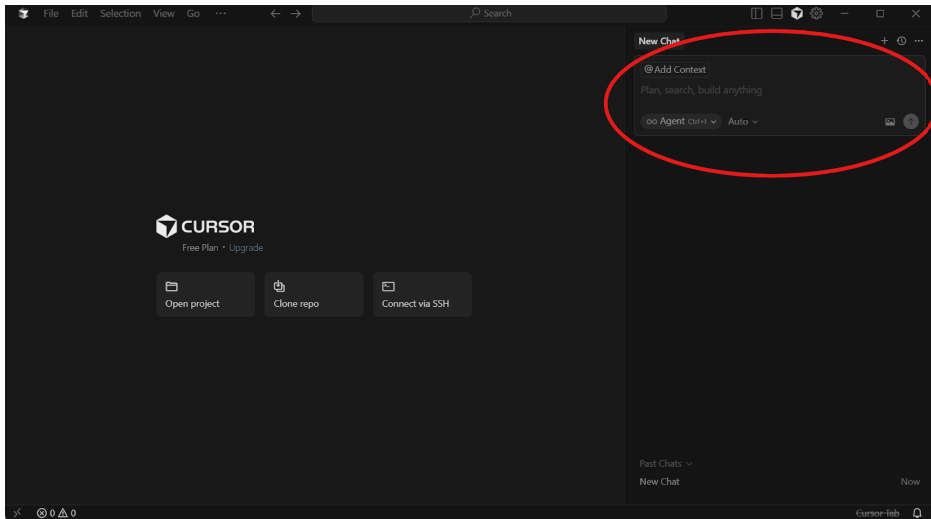
The Cursor home screen with the AI chat panel highlighted.
Opening Your First Project
Start by opening a folder or workspace. Go to File > Open Folder and select the directory containing your code. Cursor will load all files and recognize the project structure. You can also drag and drop a folder directly onto the Cursor window.
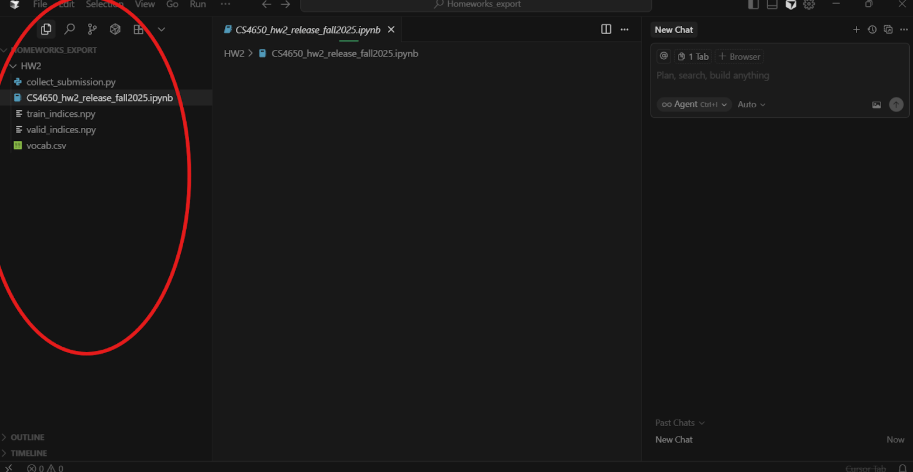
The Explorer sidebar in Cursor showing project files for quick navigation
The Editor Area
This is where you’ll write and edit code. You can open multiple files in tabs across the top. Split the editor vertically or horizontally by right-clicking a tab and selecting “Split Right” or “Split Down” to view multiple files simultaneously. Use Ctrl+Tab (Cmd+Tab on Mac) to quickly switch between open files.
The Integrated Terminal
Access the terminal by pressing Ctrl+` (backtick) or going to Terminal > New Terminal. This allows you to run commands, scripts, and development servers without leaving Cursor. You can open multiple terminal instances in tabs.
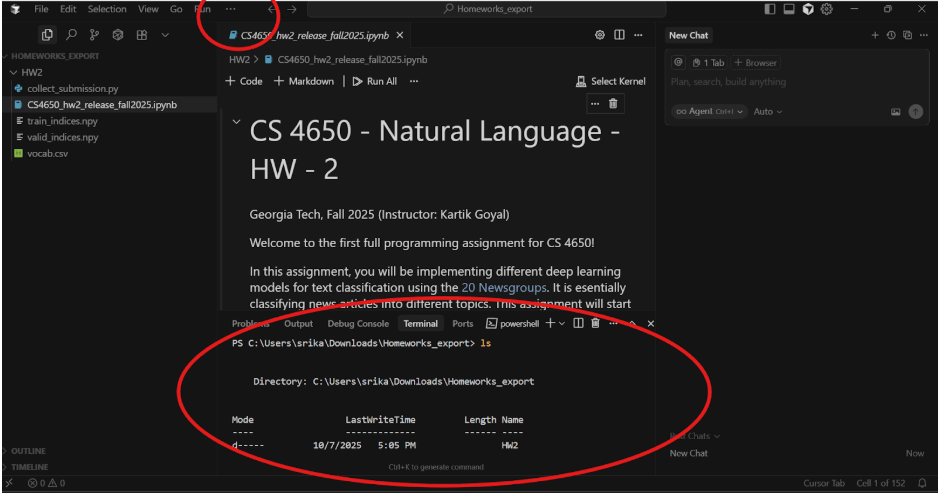
Editing a Jupyter notebook in Cursor with the integrated terminal displayed below.
Command Palette
Press Ctrl+Shift+P (Cmd+Shift+P on Mac) to open the Command Palette. This is your quick access hub for nearly every action in Cursor. Start typing to search for commands like “Open Settings,” “Install Extensions,” or any other feature.
AI Features Overview
Cursor’s AI capabilities are what set it apart. Press Ctrl+K (Cmd+K on Mac) to open inline AI editing within your code. Press Ctrl+L (Cmd+L on Mac) to open the AI chat panel on the right side. You can also use Ctrl+Shift+L (Cmd+Shift+L on Mac) to start a new AI chat session.
Customizing Your Settings
Access settings through File > Preferences > Settings or by pressing Ctrl+, (Cmd+, on Mac). Here you can customize themes, font sizes, keybindings, and AI behavior. For Cursor-specific AI settings, look for the “Cursor” section in settings where you can configure AI model preferences and features.
Essential Keybindings to Remember
Save yourself time by learning these shortcuts: Ctrl+P (Cmd+P) for quick file search, Ctrl+F (Cmd+F) to find within a file, Ctrl+Shift+F (Cmd+Shift+F) to search across all files, and Ctrl+B (Cmd+B) to toggle the sidebar visibility. These will dramatically speed up your workflow.
AI Features in Cursor – The Good Stuff
Understanding AI-Generated Code
AI-generated code is programming code created or suggested by artificial intelligence models based on your prompts, context, and existing codebase. While powerful, it’s important to understand both its strengths and limitations.
Pros of AI-Generated Code:
- Faster Prototyping: Quickly generate boilerplate code, functions, and entire features without typing everything from scratch. This accelerates the development process and lets you test ideas rapidly.
- Automated Debugging: AI can identify bugs, suggest fixes, and explain why certain errors occur. This reduces debugging time and helps you solve problems faster.
- Exposure to Best Practices: The AI often suggests code following industry standards and best practices, helping you learn better coding patterns and techniques as you work.
Cons of AI-Generated Code:
- Risk of Wrong Logic: AI can generate code that runs without errors but contains logical flaws or doesn’t actually solve your problem correctly. Always review and test AI suggestions thoroughly.
- Lack of Understanding: Relying too heavily on AI without understanding the code can leave you unable to maintain, debug, or modify it later. You miss learning opportunities when you blindly accept suggestions.
- Ethical Misuse: AI can generate code for malicious purposes, plagiarize copyrighted code patterns, or create biased algorithms. You’re responsible for ensuring your use of AI is ethical and legal.
Agent Mode vs Chat Mode
Cursor offers two primary ways to interact with AI, each suited for different tasks.
Agent Mode is activated with Ctrl+K (Cmd+K on Mac). In this mode, the AI acts directly on your codebase, making inline suggestions and edits right where your cursor is positioned. It’s ideal for quick refactoring, generating specific functions, or modifying existing code. Agent mode understands your current file context and can make precise changes without leaving your workflow.
Chat Mode is activated with Ctrl+L (Cmd+L on Mac). This opens a conversational panel where you can ask questions, request explanations, discuss architecture decisions, or get suggestions without the AI directly modifying your code. Chat mode is perfect for learning, planning, troubleshooting, or when you want to explore options before committing to changes.
Tab Completion and Accepting Suggestions
As you type, Cursor provides inline AI suggestions in gray text that appear ahead of your cursor. These predictions anticipate what you’re likely to write next based on context. When you see a suggestion you want to use, simply press Tab to accept it. If you want to see alternative suggestions, you can press Alt+] (Option+] on Mac) to cycle through different options. Press Escape to dismiss a suggestion you don’t want. This feature dramatically speeds up coding for repetitive patterns and common implementations.

Cursor Autocompletes “‘hello world’”
Choosing a Model
Cursor supports multiple AI models, each with different capabilities and performance characteristics. You can select your preferred model in the settings or directly in the chat interface.
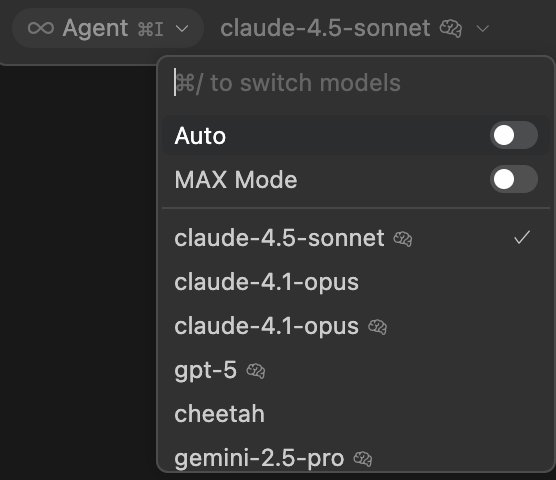
Options for different models on Cursor
Available Models:
This is always changing, the best models will have recommended tags next to them. Websites like this LLM Ranking are a great resource to see what model is best for your use case. Here are some basic suggestions.
- GPT-5: More powerful and accurate, better for complex logic, architectural decisions, and nuanced problem-solving.
- Claude Sonnet: Excellent balance of speed and capability, strong at understanding context and providing thoughtful explanations.
- Claude Opus: The most capable model for highly complex tasks requiring deep reasoning and comprehensive analysis.
Choose based on your task complexity and budget. For routine coding, GPT or Claude Sonnet work well. For challenging problems, opt for Opus.
Rate Limits and Pricing
Cursor operates on both free and paid tiers with different usage limits.
Free Use: You get a limited number of AI requests per month at no cost. This typically includes basic completions and a set number of premium model requests. Free tier users may experience rate limits during peak usage times. Once you hit your monthly limit, you’ll need to wait until the next billing cycle or upgrade to continue using AI features.
Paid Use: A Cursor Pro subscription provides significantly higher (or unlimited) requests, access to all premium models, priority access during high-traffic periods, and faster response times. Pricing is typically structured as a monthly subscription. Check cursor.com/pricing for current rates and specific usage limits.
Rate limits prevent abuse and ensure fair access. If you hit a rate limit, you’ll receive a notification indicating when you can make requests again. Learn more about pricing.
Best Practices/Ethical Guidelines
Always Review AI-Generated Code
Never blindly accept AI suggestions without understanding what the code does. Read through generated code carefully, verify the logic is correct, and test thoroughly. AI can make mistakes, introduce security vulnerabilities, or use outdated approaches. You are ultimately responsible for the code in your project, so treat AI as a helpful assistant rather than an infallible expert.
Use AI as a Learning Tool
When AI generates code you don’t fully understand, take time to research the concepts, functions, and patterns it uses. Ask the AI to explain its reasoning in Chat Mode. Look up documentation for unfamiliar libraries or methods. This transforms AI assistance into an educational experience that improves your skills rather than replacing them.
Respect Intellectual Property
AI models are trained on vast amounts of code, some of which may be copyrighted or licensed. While AI doesn’t directly copy code, it can reproduce patterns similar to copyrighted work. Be mindful of licensing requirements for your project. If you’re working on open-source or commercial projects, ensure AI-generated code complies with relevant licenses. When in doubt, verify that generated code doesn’t closely match existing copyrighted implementations.
Maintain Your Skills
While AI is a powerful productivity tool, don’t let it erode your fundamental programming abilities. Regularly practice coding without AI assistance, solve problems manually to maintain problem-solving skills, and learn new concepts through traditional study rather than only through AI explanations. Balance AI use with continued learning to remain a capable developer.
Stay Informed
AI technology and best practices evolve rapidly. Keep up with updates to Cursor’s capabilities and limitations, stay informed about AI ethics discussions in the developer community, and adjust your practices as new guidelines and standards emerge. Being a responsible AI-assisted developer means continuously learning about both the technology and its implications.
Here are several resources to stay up to date with Cursor and AI
At Georgia Tech
Stay up to date with Georgia Tech’s policies and resources. T Each class will have it’s own AI policy, and it is your responsibility to understand and adhere to it. On a personal level, be weary of how much it is detract from your learning – you are here to learn, and while Cursor might be able to solve the problems well, it does not mean you are learning effectively and will make problems cursor cannot solve that much harder.
Stay up to date with Georgia Tech’s AI policy.
There are often student deals that will allow you to get access to Pro mode for reduced cost or free.


Leave a Reply