

Authors: Arjun Gajula & Austin Huguenard
Introduction
DegreeWorks is a tool essential to every Georgia Tech student to ensure an on-time graduation. Whether you want to check your GPA, plan your future course enrollments with your current major & concentration, or see how your required classes change if you add a minor or change your major, DegreeWorks is the tool for you. We created a guide to break down DegreeWorks so you can make the most of it.
Featured image here
Table of Contents
- Introduction
- Table of Contents
- 1. Navigating to DegreeWorks
- 2. Navigating within DegreeWorks
- 3. Planning Your Next Semester
- 4. Discovering Thread (Concentration) Options
- 5. Utilizing the What-If Tab
- 6. Creating a Four Year Plan
- 7. Other Registration Tools
1. Navigating to DegreeWorks
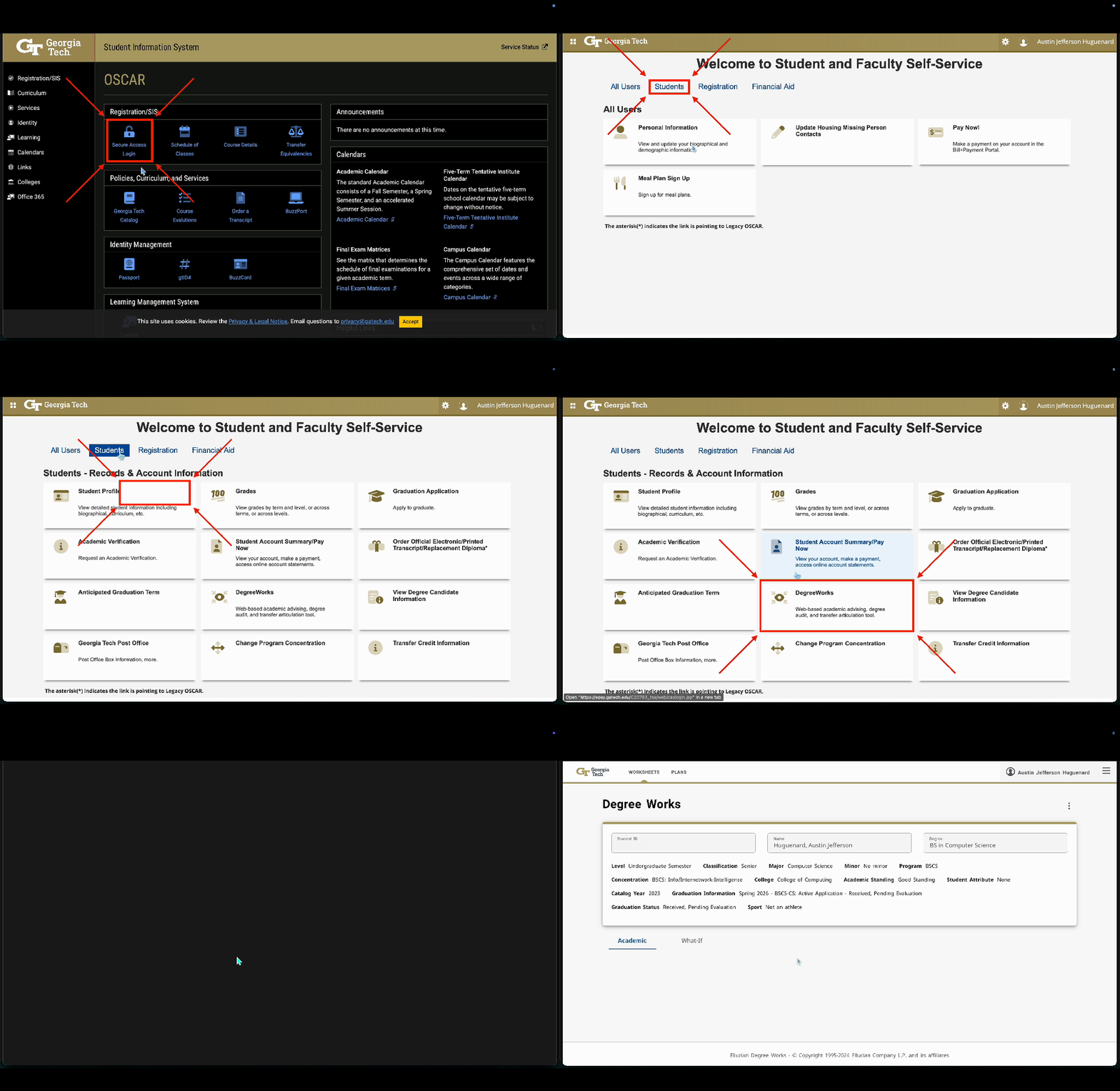
Before you can use DegreeWorks, you first have to find it. The tool is nested within Georgia Tech’s central student portal, Oscar, which houses all your registration and student records. Here is the direct path to access it:
- Navigate to Oscar
- Click Secure Access Login
- Login with your Georgia Tech account (if necessary)
- Navigate to Students tab
- Click DegreeWorks tile
2. Navigating within DegreeWorks
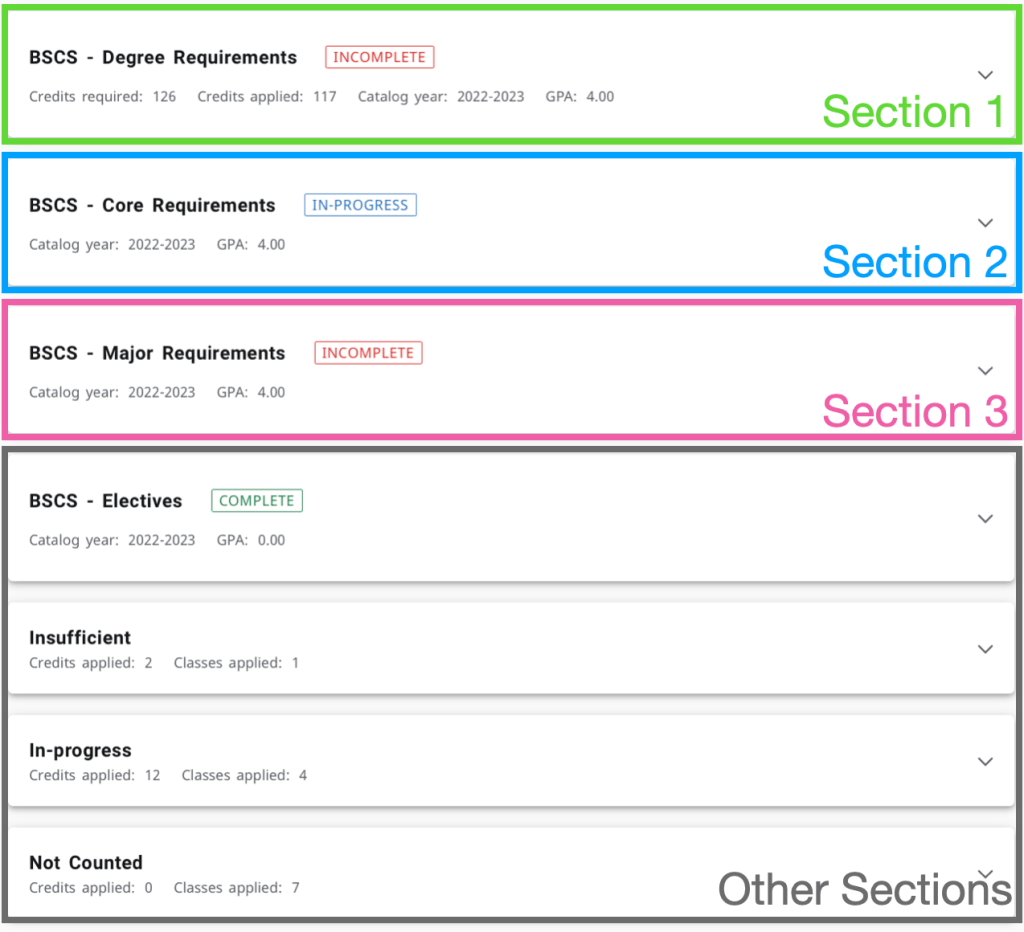
At the top of the DegreeWorks homepage, you will see information about yourself, your major & concentrations, graduation status, and GPA. Scroll down on the homepage to see the main sections of DegreeWorks. Some of the most important sections are:
- Degree Requirements: This section provides a high-level overview of the requirements you must satisfy to graduate. Some are other sections within DegreeWorks while the others are more general like maintaining a 2.0 GPA, history & constitution requirements, and course work/credit hour requirements.
- Core Requirements: This section lists classes that must be taken by every student at Georgia Tech (Core Areas A–E) as well as some classes specific to your major (Core Area F).
- Major Requirements: This section describes all classes you must take specific to your major and concentrations.
- Other Sections: There are a few additional sections that you will not utilize as much such as:
- Electives: Displays how many of your free elective credits you have fulfilled.
- Insufficient & Not Counted: Shows classes that are not counting toward your completed credit hours.
- In-progress: Shows classes you are currently enrolled in.
3. Planning Your Next Semester
For first-year and transfer students, the Major Requirements section in DegreeWorks might seem confusingly empty. This is perfectly normal! Many majors at Georgia Tech, like Computer Science, require you to choose specializations (often called “threads”). Until you officially declare these, DegreeWorks can’t display the specific courses you’ll need to take. Your first-semester plan should focus on knocking out core requirements that are common to all students. Once you have a better idea of your interests, you can declare your threads, and DegreeWorks will update to become your go-to guide for major-specific planning.

4. Discovering Thread (Concentration) Options
Before you can effectively use DegreeWorks to plan your major coursework, you need to research and choose your threads. The best place to start is your major’s official departmental website, which will have detailed descriptions of each option, the philosophy behind them, and the specific courses required for each. Making an informed choice now will make planning the rest of your degree much simpler.
For more information, you can read this guide on picking your threads.
5. Utilizing the What-If Tab
Another important part of DegreeWorks is the What-If tab. Here, you can run different scenarios to see how your required classes change from declaring a concentration, changing your major or concentration, or adding/dropping a minor. You can also input future classes you plan to take to see your degree progress after an upcoming semester. There are many ways to customize your What-If plan:
- Use current curriculum checkbox: You should never enable this when planning your schedule. You should be completing classes based on the curriculum when you started college. If you would like to see how the curriculum has changed or if you are planning for another student, you can enable this.
- In-progress classes checkbox: If checked, the scenario includes classes you are currently enrolled in when finding your remaining required classes.
- Preregistered classes checkbox: If checked, DegreeWorks pulls information from Oscar to find classes you are registered for in the next semester and will incorporate this information when finding your remaining required classes.
- Catalog dropdown: Select the year to get your degree’s curriculum from. This should be the year you started at Georgia Tech.
- Degree dropdown: Select your current degree unless you plan on changing your degree.
- Level dropdown: Select undergraduate unless you want to plan for your graduate semesters.
- Major dropdown: Select your current major unless you plan on changing your major.
- Minor dropdown: If you have a minor or want to add one, include that information here.
- College dropdown: This dropdown does not need to be filled out.
- Concentration dropdown: Select a thread/concentration specific to your major to see the classes you must take.
- Additional areas of study dropdown: This section allows you to add an additional degree, major, minor, or concentration to see additional required classes.
- Future classes section: This section allows you to input classes you want to exclude from your remaining classes in the scenario. You would typically use this to exclude classes you plan to take in the next semester but maybe haven’t registered for.
Below, an example What-If has been created with all the information filled in. The information in the pink boxes was filled in by the user while the other information was set by default. In this What-If, we are seeing what happens when a psychology minor is added and an enrollment (CS 4510) is marked as completed.
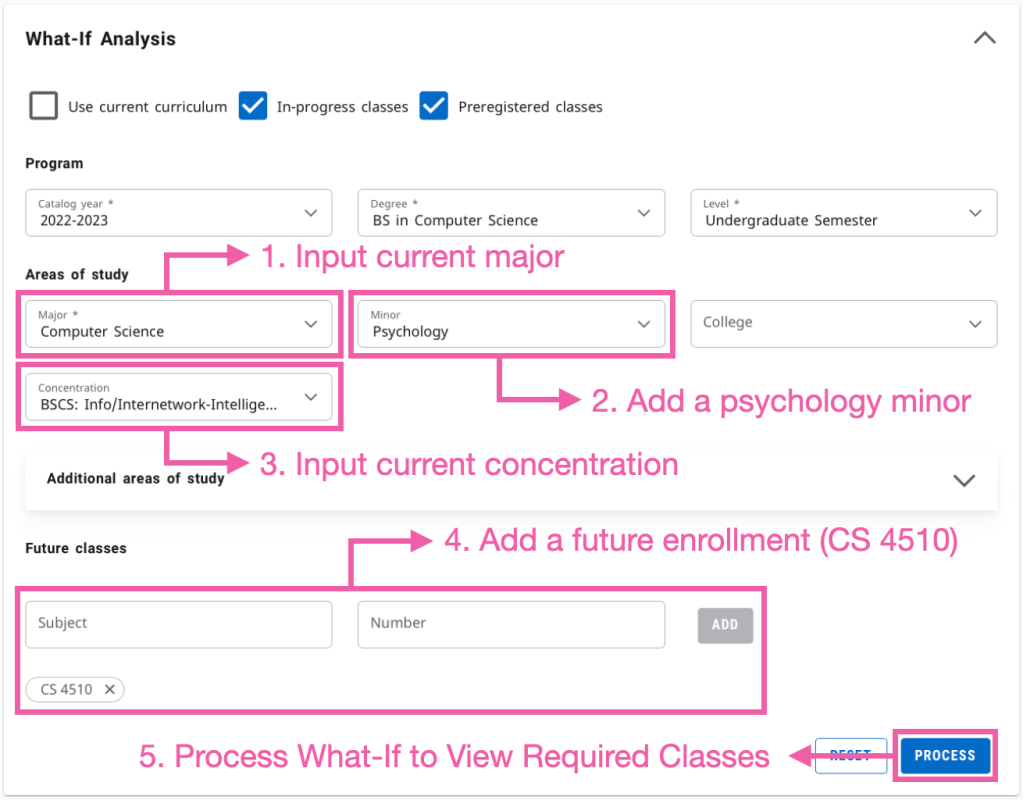
On the left, you can see the What-If form inputted with the information we want to create a new scenario for.
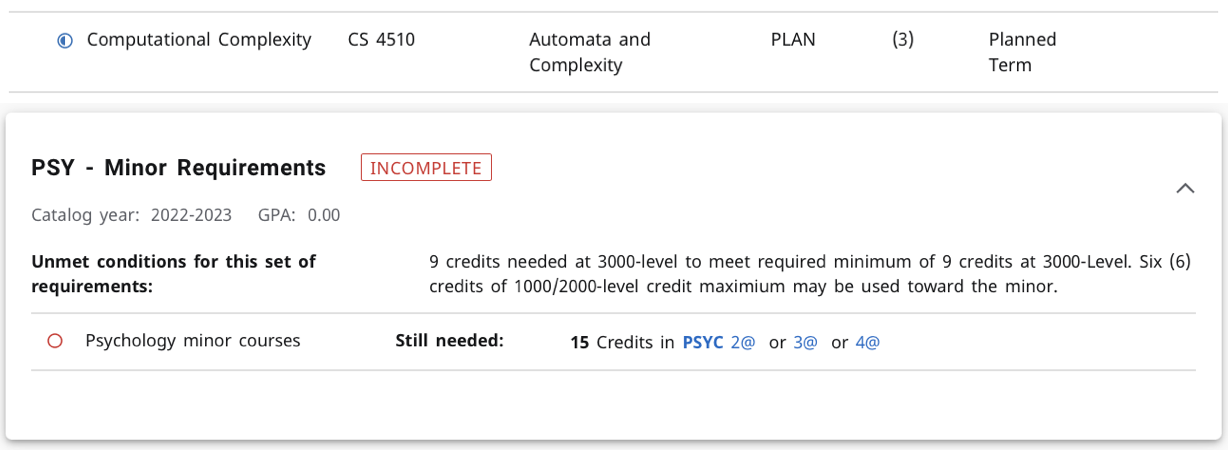
After clicking the process button, we then see these two changes to future required classes. In the image below, CS 4510 is now marked as complete and the minor requirements for psychology have been added.
6. Creating a Four Year Plan
While DegreeWorks is your essential audit tool, showing you what you need to take, the actual planning and scheduling of those courses semester by semester often happens in Oscar or even in a personal spreadsheet. Think of DegreeWorks as your ultimate checklist and Oscar’s “Plans” feature as your canvas for arranging those requirements into a coherent four-year roadmap.
Here’s how to effectively create your long-term plan:
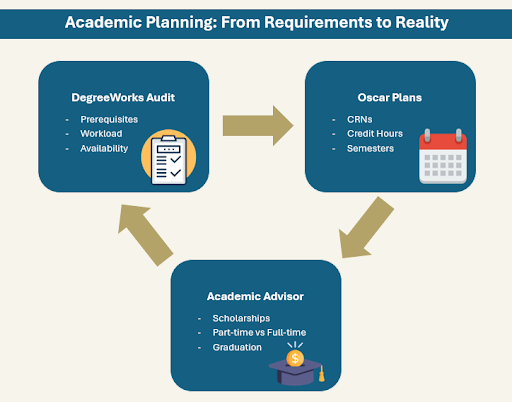
- Consult DegreeWorks: Start by thoroughly reviewing your DegreeWorks audit. Identify all remaining core, major, and elective requirements. Pay close attention to prerequisites listed for higher-level courses.
- Access Oscar’s “Plans” Feature: Log in to Oscar and navigate to the “Student Services & Financial Aid” tab, then “Registration,” and finally “Look Up Classes / Add to Worksheet / Plans.” Here you’ll find the “Plans” tab, which allows you to build a schedule for future semesters.
- Map Out Your Semesters: Based on your DegreeWorks audit, populate your desired courses from the “Course Search” into the appropriate semester blocks within Oscar’s “Plans.”
- Prioritize Prerequisites: Ensure you schedule introductory courses before their advanced counterparts.
- Balance Workload: Distribute challenging courses evenly across semesters.
- Consider Course Availability: While Oscar shows future terms, verify when specific courses are typically offered (e.g., fall-only, spring-only) using resources like Course Critique or your academic department’s curriculum sheets.
- Review and Refine: This plan is a living document. Regularly compare it against your DegreeWorks audit and discuss it with your academic advisor. They can provide invaluable insight into course sequencing, thread choices, and ensuring you’re on track for graduation.
7. Other Registration Tools
While DegreeWorks tells you what courses to take, several other tools can help you decide when to take them and with which professor. Combining these resources can make the registration process much less stressful.
- GT Scheduler: This tool allows you to input the courses you want to take for a given semester and automatically generates all possible conflict-free weekly schedules. You can block out times for work or clubs and pin specific class sections you prefer.
- Course Critique: As Georgia Tech’s official course evaluation platform, this site gives you historical data on grade distributions (the percentage of As, Bs, etc.) for every course and professor. It’s the most reliable way to gauge a course’s difficulty.
- Coursicle: If a class you need is full, Coursicle can save the day. This app tracks the class for you and sends you a notification the instant a spot opens up, giving you a chance to grab it.
- RateMyProfessor: Here, you can find student-written reviews about specific professors. While it can be helpful for getting a feel for a professor’s teaching style, remember that the reviews can be highly subjective.
- Plans on Oscar: After creating your long-term plan in DegreeWorks, you can use the “Plans” feature in Oscar to build your registration plan for the upcoming semester. This allows you to prepare your exact CRNs (Course Registration Numbers) ahead of time so you can register in seconds once your time ticket opens.


Leave a Reply